How Can You Build a Word Counter in JavaScript Easily?
Learn to create a word counter application in JavaScript with HTML, CSS and JS which displays the real-time word, character, sentence and paragraph count.
Quick Summary
- This tutorial will teach you to create a basic word counter app that uses HTML, CSS, and JavaScript to count words, a great beginner project for DOM manipulation.
- The word counter does not require a page refresh to display its results as the user types, deletes or pastes text into the textarea.
- The tool calculates the number of words, characters, characters without spaces, sentences and paragraphs, providing users with an accurate representation of the content written.
- Some of the useful methods used in the JavaScript logic include the methods:
trim(),match(),replace(),split(), andfilter(), which use text to process it accurately and efficiently. - Additional features such as reading time, word limits, copy buttons and clear buttons would enhance the use of this project.
Why Build a Word Counter in JavaScript?
JavaScript is well suited for this situation because it is programmed right in the browser. This also allows users to enter text and have it rendered in real-time without needing to refresh the page or send data to a server.
Practicing with a word counter in JavaScript can help you learn:
- Selecting HTML elements
- Handling user input
- Working with the
inputevent - Working with strings
- Fresh content is added to the page via dynamic updates.
- Being able to write clean and reusable code.
This is a good project for anyone that wants to reinforce their basic knowledge of JavaScript.I selected this project because it allows me to practice real life JavaScript logic in the browser, it's one of the easiest ones to get started on. I like to start with basic DOM functions when creating a little tool and then head to bigger frameworks.
Features of the Word Counter
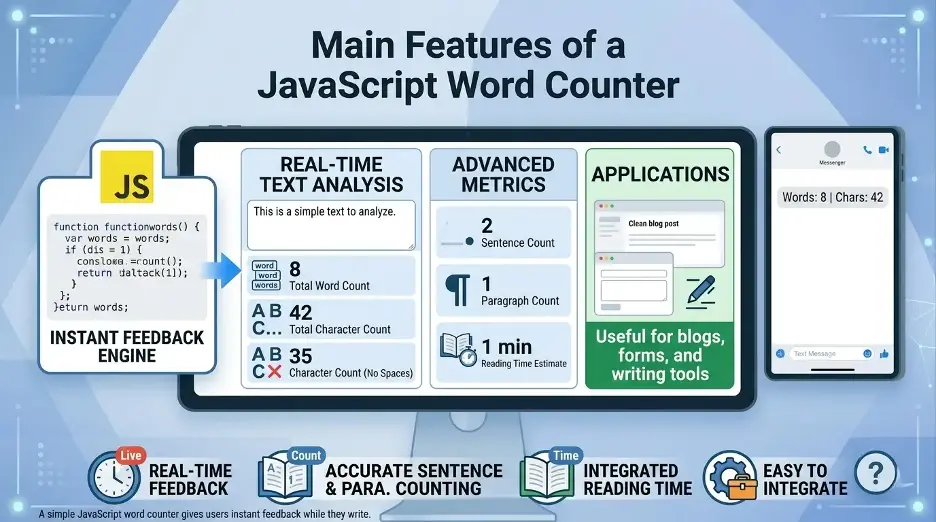
The counter that we will create will contain the following words:
- Real-time word counting
- Character counting
- The number of characters in the text excluding spaces.
- Sentence counting
- Paragraph counting
- Neat and responsive design.
- Beginner-friendly JavaScript logic
Step 1: Create the HTML Structure
Now, create a simple HTML document. It has a heading, a text area, and multiple result boxes to display the counts.
<!DOCTYPE html>
<html lang="en">
<head>
  <meta charset="UTF-8" />
  <meta name="viewport" content="width=device-width, initial-scale=1.0" />
  <title>Word Counter in JavaScript</title>
  <link rel="stylesheet" href="style.css" />
</head>
<body>

  <main class="container">
    <h1>Word Counter</h1>
    <p>Type or paste your text below to count words, characters, sentences, and paragraphs.</p>

    <textarea id="textInput" placeholder="Start typing here..."></textarea>

    <div class="stats">
      <div class="stat-box">
        <h2 id="wordCount">0</h2>
        <p>Words</p>
      </div>

      <div class="stat-box">
        <h2 id="characterCount">0</h2>
        <p>Characters</p>
      </div>

      <div class="stat-box">
        <h2 id="characterNoSpaceCount">0</h2>
        <p>Characters Without Spaces</p>
      </div>

      <div class="stat-box">
        <h2 id="sentenceCount">0</h2>
        <p>Sentences</p>
      </div>

      <div class="stat-box">
        <h2 id="paragraphCount">0</h2>
        <p>Paragraphs</p>
      </div>
    </div>
  </main>

  <script src="script.js"></script>
</body>
</html>
This HTML gives the word counter a clear structure. The textarea accepts user input, while each result box displays a specific count.
Step 2: Add CSS for Styling
Next, create a style.css file to make the word counter clean and user-friendly.
* {
  box-sizing: border-box;
  margin: 0;
  padding: 0;
}

body {
  font-family: Arial, sans-serif;
  background: #f4f6f8;
  color: #222;
  line-height: 1.6;
  padding: 20px;
}

.container {
  max-width: 900px;
  margin: 40px auto;
  background: #fff;
  padding: 30px;
  border-radius: 12px;
  box-shadow: 0 4px 20px rgba(0, 0, 0, 0.08);
}

h1 {
  margin-bottom: 10px;
  font-size: 32px;
}

.container > p {
  margin-bottom: 20px;
  color: #555;
}

textarea {
  width: 100%;
  min-height: 220px;
  padding: 15px;
  font-size: 16px;
  border: 1px solid #ccc;
  border-radius: 8px;
  resize: vertical;
  outline: none;
}

textarea:focus {
  border-color: #333;
}

.stats {
  display: grid;
  grid-template-columns: repeat(auto-fit, minmax(160px, 1fr));
  gap: 15px;
  margin-top: 20px;
}

.stat-box {
  background: #f9fafb;
  padding: 20px;
  border-radius: 8px;
  text-align: center;
  border: 1px solid #e5e7eb;
}

.stat-box h2 {
  font-size: 28px;
  margin-bottom: 5px;
}

.stat-box p {
  font-size: 14px;
  color: #555;
}
This styling creates a responsive layout, so the word counter works well on desktops, tablets, and mobile devices.
Step 3: Write the JavaScript Logic
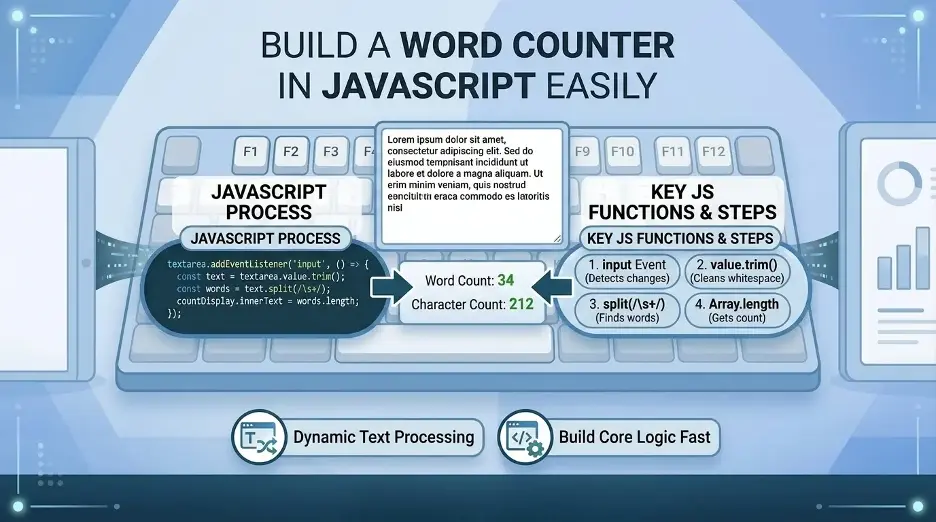
Now create a script.js file. This file will handle the actual word counting.
const textInput = document.getElementById("textInput");
const wordCount = document.getElementById("wordCount");
const characterCount = document.getElementById("characterCount");
const characterNoSpaceCount = document.getElementById("characterNoSpaceCount");
const sentenceCount = document.getElementById("sentenceCount");
const paragraphCount = document.getElementById("paragraphCount");

textInput.addEventListener("input", updateCounts);

function updateCounts() {
  const text = textInput.value;

  characterCount.textContent = text.length;

  const charactersWithoutSpaces = text.replace(/\s/g, "");
  characterNoSpaceCount.textContent = charactersWithoutSpaces.length;

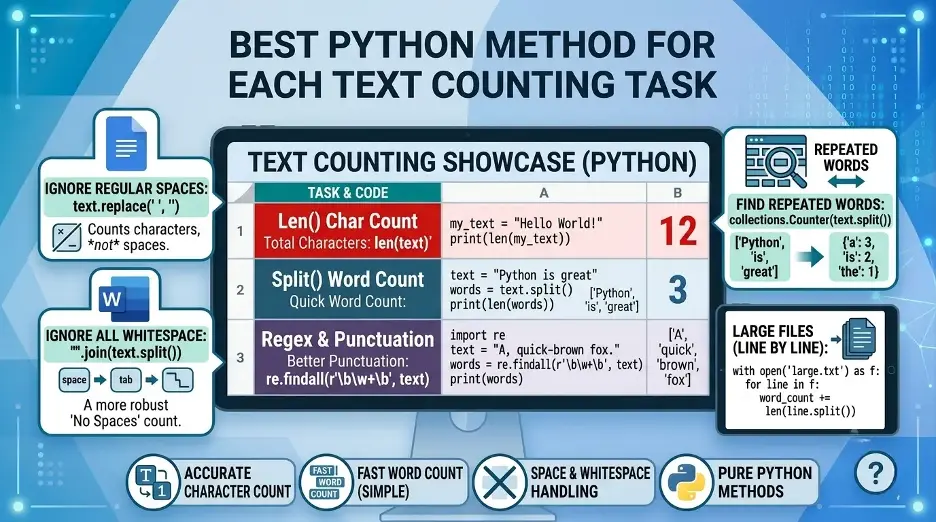
  const words = text.trim().match(/\S+/g);
  wordCount.textContent = words ? words.length : 0;

  const sentences = text.match(/[^.!?]+[.!?]+/g);
  sentenceCount.textContent = sentences ? sentences.length : 0;

  const paragraphs = text
    .trim()
    .split(/\n+/)
    .filter(paragraph => paragraph.trim() !== "");

  paragraphCount.textContent = paragraphs.length;
}
This JavaScript listens for the input event. Every time the user types, deletes, or pastes text, the updateCounts() function runs and updates the results instantly.
How the JavaScript Word Counter Works?
Let’s break down the main logic.
1. Getting the Text Input
const text = textInput.value;This line is used to copy the contents of the text area into the variable.
2. Counting All Characters
characterCount.textContent = text.length;length property counts every letter, number, space, punctuation and line break.
3. Counting Characters Without Spaces
const charactersWithoutSpaces = text.replace(/\s/g, "");The regular expression /\s/g will match all the white space characters such as spaces, tabs, and line breaks. They are removed by the replace() method before counting the numbers of characters remaining.
4. Counting Words
const words = text.trim().match(/\S+/g);This line can be used for removing extra space from the start and end of the text, and for matching sequences of non-space characters.
For example:
JavaScript is easyThis makes three words:
JavaScript
is
easyThe condition below will prevent errors if the text area is empty:
wordCount.textContent = words ? words.length : 0;5. Counting Sentences
const sentences = text.match(/[^.!?]+[.!?]+/g);This verifies sentence-like structures that have a period or question mark or exclamation mark at the end of the sentence.
It can be used for simple sentence counting, but more sophisticated abbreviations like “Dr.” or “e.g.” might require more sophisticated processing.
6. Counting Paragraphs
const paragraphs = text
  .trim()
  .split(/\n+/)
  .filter(paragraph => paragraph.trim() !== "");
This will split the text across the lines and remove blank lines. Any block that is not empty is considered to be a paragraph.
Complete Code for the JavaScript Word Counter
All of this code is available in one HTML file. It can be copied and run in your browser.
<!DOCTYPE html>
<html lang="en">
<head>
  <meta charset="UTF-8" />
  <meta name="viewport" content="width=device-width, initial-scale=1.0" />
  <title>Word Counter in JavaScript</title>

  <style>
    * {
      box-sizing: border-box;
      margin: 0;
      padding: 0;
    }

    body {
      font-family: Arial, sans-serif;
      background: #f4f6f8;
      color: #222;
      line-height: 1.6;
      padding: 20px;
    }

    .container {
      max-width: 900px;
      margin: 40px auto;
      background: #fff;
      padding: 30px;
      border-radius: 12px;
      box-shadow: 0 4px 20px rgba(0, 0, 0, 0.08);
    }

    h1 {
      margin-bottom: 10px;
      font-size: 32px;
    }

    .container > p {
      margin-bottom: 20px;
      color: #555;
    }

    textarea {
      width: 100%;
      min-height: 220px;
      padding: 15px;
      font-size: 16px;
      border: 1px solid #ccc;
      border-radius: 8px;
      resize: vertical;
      outline: none;
    }

    textarea:focus {
      border-color: #333;
    }

    .stats {
      display: grid;
      grid-template-columns: repeat(auto-fit, minmax(160px, 1fr));
      gap: 15px;
      margin-top: 20px;
    }

    .stat-box {
      background: #f9fafb;
      padding: 20px;
      border-radius: 8px;
      text-align: center;
      border: 1px solid #e5e7eb;
    }

    .stat-box h2 {
      font-size: 28px;
      margin-bottom: 5px;
    }

    .stat-box p {
      font-size: 14px;
      color: #555;
    }
  </style>
</head>
<body>

  <main class="container">
    <h1>Word Counter</h1>
    <p>Type or paste your text below to count words, characters, sentences, and paragraphs.</p>

    <textarea id="textInput" placeholder="Start typing here..."></textarea>

    <div class="stats">
      <div class="stat-box">
        <h2 id="wordCount">0</h2>
        <p>Words</p>
      </div>

      <div class="stat-box">
        <h2 id="characterCount">0</h2>
        <p>Characters</p>
      </div>

      <div class="stat-box">
        <h2 id="characterNoSpaceCount">0</h2>
        <p>Characters Without Spaces</p>
      </div>

      <div class="stat-box">
        <h2 id="sentenceCount">0</h2>
        <p>Sentences</p>
      </div>

      <div class="stat-box">
        <h2 id="paragraphCount">0</h2>
        <p>Paragraphs</p>
      </div>
    </div>
  </main>

  <script>
    const textInput = document.getElementById("textInput");
    const wordCount = document.getElementById("wordCount");
    const characterCount = document.getElementById("characterCount");
    const characterNoSpaceCount = document.getElementById("characterNoSpaceCount");
    const sentenceCount = document.getElementById("sentenceCount");
    const paragraphCount = document.getElementById("paragraphCount");

    textInput.addEventListener("input", updateCounts);

    function updateCounts() {
      const text = textInput.value;

      characterCount.textContent = text.length;

      const charactersWithoutSpaces = text.replace(/\s/g, "");
      characterNoSpaceCount.textContent = charactersWithoutSpaces.length;

      const words = text.trim().match(/\S+/g);
      wordCount.textContent = words ? words.length : 0;

      const sentences = text.match(/[^.!?]+[.!?]+/g);
      sentenceCount.textContent = sentences ? sentences.length : 0;

      const paragraphs = text
        .trim()
        .split(/\n+/)
        .filter(paragraph => paragraph.trim() !== "");

      paragraphCount.textContent = paragraphs.length;
    }
  </script>

</body>
</html>
Improving the Word Counter
The standard version is fine, but can be modified based on project needs.
Add a Reading Time Estimate
Reading time can be estimated by assuming that the average reader reads 200 words a minute.
const readingTime = Math.ceil(wordTotal / 200);It can then be exhibited as in this case:
readingTimeElement.textContent = `${readingTime} min read`;A feature helpful for blogs, article editors, and content management systems.
Add a Word Limit
You can compare the word count to a maximum value, if you want to restrict the user to a specific number of words.
const maxWords = 100;

if (words && words.length > maxWords) {
  alert("You have exceeded the word limit.");
}
If using a message on the page, rather than an alert, to improve the user experience.
Add Copy and Clear Buttons
There are also buttons that can be added to the text area so that the user may copy the text or clear the text area.
If you have a clear button, the logic should look like:
function clearText() {
  textInput.value = "";
  updateCounts();
}
This helps the tool to be more useful to real users.
Best Use Cases for a JavaScript Word Counter
There are numerous types of websites and applications that can use a JavaScript word counter, including:
- Blog writing tools
- Online text editors
- SEO content tools
- Essay writing platforms
- There are social media caption tools.Social media caption tools exist.
- Write in fields containing words with limits
- The information you include in your resume or cover letter.
- Content management dashboards
It is browser based, so it can give immediate feedback and enhance the user experience.
Is JavaScript Good for Building a Word Counter?
Yes, JavaScript is one of the best languages to create a word counter as it can handle text on the client side instantaneously. For a simple word counter, no backend server is required.
The counting function is added by JavaScript, the structure is created by HTML and the design is done by CSS. This mix is low in weight, quick to install, and simple to maintain.
Interesting Research Facts
Full citations are in Sources below.
300 WPM is a myth
Is actually a statistic that has been proven to be incorrect, with adults reading at 238 WPM for nonfiction and 260 WPM for fiction. Estimate “Time to Read” accurately using 238 WPM.
Source: 300 WPM is a myth
Word count predicts essay quality
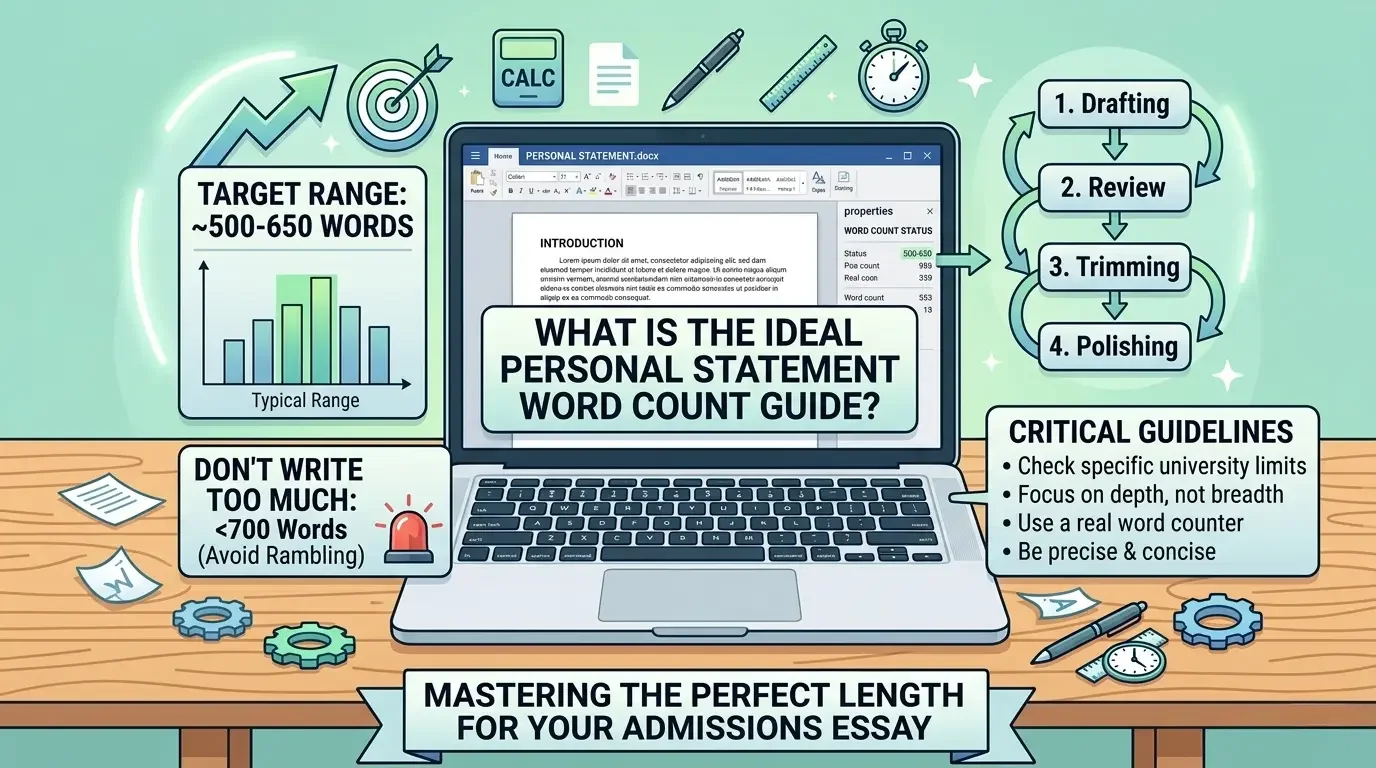
Essays are generally better the longer they are, but the optimum length is around 500 – 565 words for a short application. Word Counters aid Writers in adding depth but not too much.
Screen attention is shrinking
The amount of time spent on screen is decreasing and has reduced to around 47 seconds on average, so being succinct becomes even more crucial, and word/character limits are becoming more significant.
Source: Screen attention is shrinking
Slow reading can hurt comprehension
If the reading speed is below 50–70 WPM, then earlier words may slip out of the mind before the comprehension of the complete idea is achieved. Reading speed can be monitored using timed word counters.
Word limits are fairer than page limits
Word counts are more accurate than page counts because font, spacing and margins can affect page counts, but not word counts.
Frequently Asked Questions
1.Why does my word counter include line breaks as words?
This is typical when words are split using the split(" ") function. Instead, a better match would be to use the non-space text match using /\S+/g, which will match spaces, tabs and line breaks more accurately.
2.How to get rid of this error message from the word counter when there is no word in the textarea?
The match() function can return null if the textarea is blank. Hence I check if the word is there or not and if not, I print out 0 .
3.I've got a live word counter, should I use keyup,, or should I use change, , or should I use input ?
I'd like to use the input event as it updates the counter every time the user types, deletes, or pastes text. It provides a smoother real-time result than change. .
4.If I add text dynamically (using JavaScript), why doesn't the counter update?
The JavaScript input event may not execute automatically if text is included in the text input . If it is then, I call the counting function again, after I've changed the contents of the textarea.
5.Is there a character limit or word limit?
Yes. JavaScript can be used to count the words in the text and then check the word count against a maximum limit. This is helpful in forms, essays, comments, short bio fields etc.
6.Is this word counter 100% accurate for all types of text?
No. It is suitable for simple text but might impact abbreviations, urls, emojis etc. format. This is still a good basic rule for a beginner project!
Want to test word and character counts without building the code first? Open the free word counter, or compare related guides like word count vs character count and character counter online.
How we reviewed this article:
Share this article