Character Count in Word: How to Count Characters in Microsoft Word?
How to count Characters in Microsoft Word with spaces and without spaces, selected text, Word Online and the Review tab.
Quick Summary
- Microsoft Word displays two types of character counts: characters with spaces and characters without spaces; you can select the count you need.
- The quickest method to determine the word count is to click the word count number in the status bar at the bottom of the Word window.
- The Word Count box can only count characters in one sentence, paragraph, or section; highlight the text first and then click the Word Count box.
- The Review tab also provides access to the Word Count tool for cases where the word count isn't displayed on the Word Count bar.
- Verify that Word is adding footnotes, endnotes, and textboxes to a document before submitting it since they can affect the total word count.
What Is Character Count in Microsoft Word?
Character count is the number of characters, letters, numbers, punctuation, symbols and spaces in a text. There are two types of character counts you can display in Microsoft Word:
Characters no spaces
Letters, numbers, punctuation and symbols are counted, but spaces between words are not counted.
Characters with spaces
This is a count of all the items in the text, including spaces between words.
“characters with spaces” typically refers to the number of characters in most online forms, essays, ads, search engine snippets and content platforms. Some guidelines for academic or publishing purposes, however, may require characters to be placed without spaces. I use the Word Count feature in Microsoft Word since it provides 2 counts, char, with spaces and char, no spaces.
How to Count Characters in Word Using the Status Bar
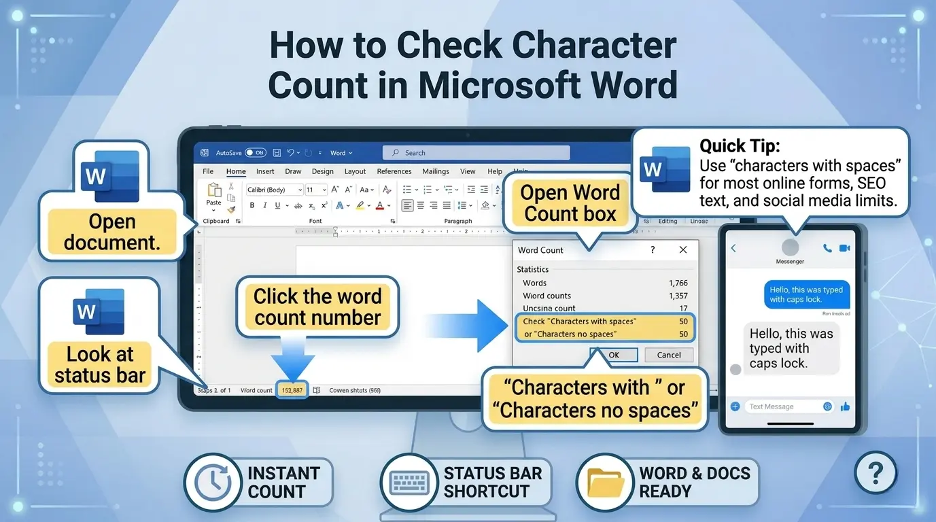
In MS Word, the best method for checking character count is via the status bar located at the bottom of the document.
Steps to Count Characters in Word
- Open a Word document.Open a Word file.
- Open the Word window, and inspect the bottom left corner.
- Tap the word count on the status bar.
- The Word Count dialog will appear.
Look in the following areas:
- Characters no spaces
- Characters with spaces
This method is effective if you need to count the number of characters in the whole document.
How to Count Characters in Selected Text
At times, you might not need to use the full amount of characters for the entire document. Sometimes you only need to count the characters in a paragraph, heading, sentence, quote, or in a part of a text. I
If you are creating meta descriptions, titles and short form answers, then you should only choose the text you want to check.
For Example: If I type up a meta description in MS Word, I only highlight that sentence, and then I open the Word Count box. This will help me to count the actual number of characters without counting the length of the rest of the document.
Steps to Count Characters in Selected Text
- Select the text that you want the count of.
- Check the word count on the status bar.
- Tap on the number of words.
- See the number of characters in words in the selected text in the Word Count box.
The word count is displayed when the text is selected, instead of when it is selected within the entire document. This can be particularly useful for writing with constraints, like a 160 character meta description or a 280 character social media post.
How to Count Characters in Word on Mac
The process for checking character count in Word for Mac is similar.
Steps for Word on Mac
- Open the Word document.
- Tap on the word count in the status bar.
- The Word Count box will appear.
- Check the character count with and without spaces.
You can check the word count status bar if it is not visible, by customizing the status bar or by using the Word Count option from the menu.
How to Count Characters from the Review Tab
There is also an option to view character count in the Review tab of Microsoft Word.
Steps to use the Review Tab:
- Open your document.
- Navigate to the Review tab.
- Find the Proofing group.
- Click Word Count.
- Check the character count in the dialog box.
This option can be helpful when the word count is not visible in the status bar or you'd prefer to use the ribbon menu.
What Does the Word Count Dialog Box Show?
The Word Count dialog box in Microsoft Word typically appears with the following:
- Pages
- Words
- Characters no spaces
- Characters with spaces
- Paragraphs
- Lines
Other options include adding or removing textboxes, footnotes and endnotes depending on your Word version. This may be relevant if there are citations, references, comments, captions, and more outside of the main text of your document.
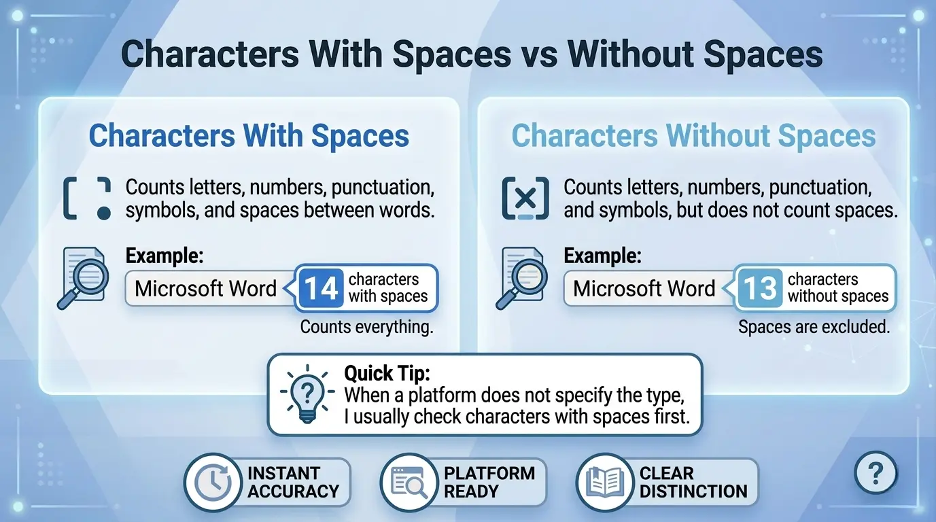
Characters With Spaces vs Characters Without Spaces
Knowing the difference between these two counts will help you prevent formatting and submission errors.“characters with spaces” is often the preferred number to test because most platforms measure the entire visible character count of a text.
Characters With Spaces
This comprises all the characters that you can see and any space between words.
Example:
“Microsoft Word”
Word Count with Spaces: 14
Characters Without Spaces
This doesn't include space between words.
Example:
“Microsoft Word”
Total characters (including spaces): 39
When no specific type of character count is specified, characters with spaces is a good safe bet since it's the length of the text on screen.
How to Show Word Count on the Status Bar
If you don't see the word count at the bottom of Microsoft Word, it may be hidden.
Steps to Enable Word Count on the Status Bar
To enable Word Count on the Status Bar:
- Right-click the Word status bar at the bottom of the Word window.
- On the menu, you will find Word Count.
- Tap it to display.
When activated, the word count will be displayed on the status bar. You can then click it whenever you need to see the full count of characters.
Can Microsoft Word Count Characters Automatically?
Yes. The word and character counts will be automatically updated as you type in Microsoft Word. Normally it will not need to be refreshed manually.
If you are using fields to add a live word count to the document, however, Microsoft says that fields can be updated as necessary. You can also put a word count field in the document by inserting a field under Insert > Quick Parts > Field, but this is primarily for word count and not character count.
How to Count Characters in Word Online
Word for the Web has word count, depending on your version and interface, that may show the count of characters.
A common method is:
- Open the document in Word Online.
- Select Review tab.
- Select Word Count.
- Check out the statistics that are available.
Check the character count in Word Online, but if the complete count you require is not available, open the document in Microsoft Word desktop to view it.
Does Word Count Include Footnotes and Endnotes?
Microsoft Word might have options to include or exclude footnotes, endnotes, and textboxes from the Word count box. If your document has references, legal notes,citations, or other text components, be sure to check this setting before relying on the final count.
If you have a character count for your academic or professional writings, see if footnotes and references count.
Common Problems When Checking Character Count in Word
Word Count Is Not Showing
Right-click on the status bar and check off Word Count. A common error I see is the selection of a small portion of the text, having Word give a count for that text, rather than a count for the entire document.
Character Count Looks Too High
Look at Word and determine if it is adding spaces, textboxes, footnotes, or endnotes.
Character Count Looks Too Low
Be sure you have not highlighted just a portion of the document. If text is highlighted, Word might display only the number of words in the highlighted text.
Online Count Differs from Word Count
Line breaks, special characters, tabs and spaces may be counted differently by different tools. For official word documents use Microsoft Word's Word Count tool unless your submission platform has its own Word Count tool.
Best Practices for Managing Character Count in Word
Here are some tips to help you stay within the word count:
- Look for spaces in the limit.
- When editing parts of text, select it by the count.
- Take out irrelevant filler words.
- Avoid repeated phrases.
- Shorten long sentences.
- Use straightforward language instead of using long sentences.
- Use the final count for formatting edits.
- Check to see if there are footnotes and text boxes.
Character Count in Word for SEO Writing
I use character count as a last step when I am creating titles or meta descriptions for SEO purposes, to ensure that the copy is clear, concise, and readable. Character count can be particularly helpful in SEO writing when creating:
- Meta titles
- Meta descriptions
- Blog titles
- Headings
- Product descriptions
- URL slugs
- Image alt text
- Social media previews
While the length of text does not affect a page's ranking, a short and clearly worded text makes it easier to read, easier to find in search results, and better for the user. With Microsoft Word, writers can create content within reasonable bounds before posting to a website or CMS.
Interesting Research Facts
Full citations are in Sources below.
Character count and text difficulty
The longer the word length the harder the word is to read. Another study showed there was a significant relationship between the average characters per word and reading grade level.
Source: ScienceDirect
Character metrics and reading speed
There is no foolproof method of measuring words and it is simply not enough to count the words in a text. Research on reading-speed employs measures of word length and character to increase the estimate of reading time. .
Source: ScienceDirect
Impact of strict length limits
Character limits impact on how users write and how they interact. I found that an extension of the length limits led to more posts and engagement.
Source: pubsonline.informs.org
Word length and eye movement
The results indicate that word length and processing load affect reading flow, preview benefits and eye-movement patterns, as revealed in eye-tracking research.
Source: PLOS One
Text structure and Zipf’s law
Character counts, vocabulary size and word-frequency patterns are frequently employed tools in text analysis. These patterns are often found to be Zipf, which are suitable for NLP and language-processing use.
Source: ScienceDirect
Frequently Asked Questions
1.In Word, can I count characters in just some text?
Yes. Select the text and then click on the word count on the status bar. Only the selected text will be displayed with the count.
2.Why does Word display a different number of characters than I would expect?
It can count spaces, footnotes, endnotes, textboxes, or just certain text. Check the Word Count box carefully before using the final number.
3. Are characters with spaces visible in Microsoft Word?
Yes. The Word Count box displays the number of characters with and without spaces.
4. Am I able to count characters in a single section or chapter?
Yes. First, click on that section/chapter, then click on Word Count. Outline View is also used by some users to select an entire section by heading.
5. Is it possible to insert a live character counter into the document in Word?
Some count fields can be inserted into Word, although showing characters with spaces as a live field is limited and may not be the same as for the Word Count box.
6.Word only counts part of my document, why?
This typically occurs when there is some text highlighted. To remove the selection, click anywhere in the document, and then open Word Count.
7. Is it possible to count the changes in the text only after checking it with Track Changes?
There is no easy count, only the changed characters button in Word. Often, a user must do a "workaround" such as copying or isolating the changed text first.
Need a quick count without opening Word? Try our free character counter or our free word counter. To understand the difference between the two metrics, see our guide on word count vs character count.
How we reviewed this article:
Share this article