How to Check Word Count in Google Docs?
Discover how to count words and characters in Google Docs on desktop, mobile, iPhone, and Android—and how to see word and character counts in real time.
Quick Summary
- Use the Tools menu on the desktop: Open your Google Docs file, click Tools, and then select Word count to see the word count, including the number of pages, words, and characters (including space).
- Access the word count window more quickly: Command + Shift + C (Mac) or Ctrl + Shift + C (Windows or Chromebook) to open the word count window instantly.
- Track word count as you write: If you want to see the word count as you write, go to Tools > Word count, click the Display word count while typing option, and the word count will display in a small box in the lower left corner of Google Docs.
- Check word count for selected text: Highlight a paragraph, section or sentence and select Word count to display the selected word count and the total word count.
- Word count on your mobile device: Open your document in the Google Docs app for iPhone, iPad, or Android, tap the three-dot menu, and select Word count.
How to Check Word Count in Google Docs on Desktop
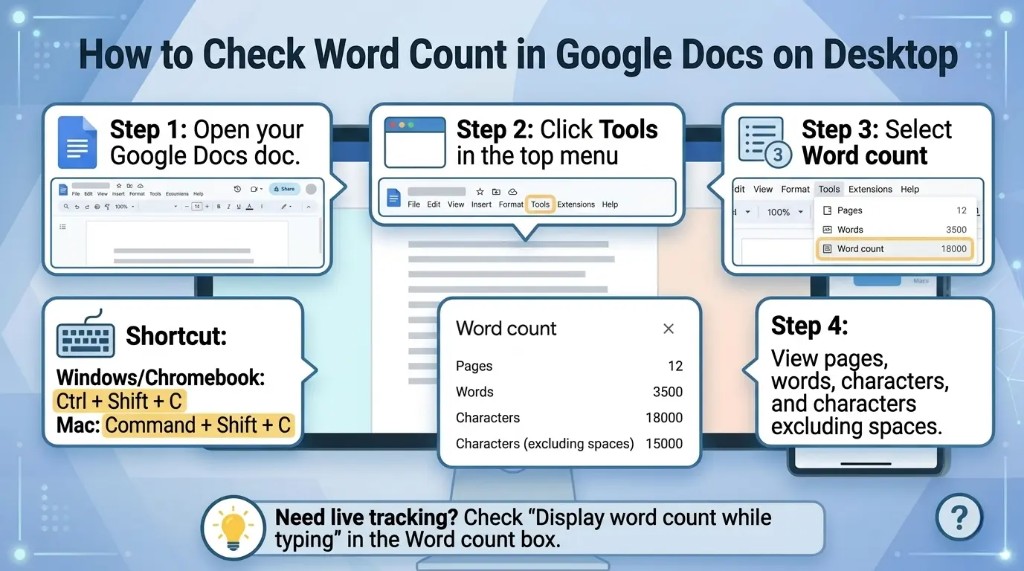
To view the Total Word Count of the document, complete the following steps:
- Click on Google Docs and open the document.
- From the top menu bar, click on Tools.
- Select Word count.
- The total number of pages, words and characters will appear in a pop-up box.
- To close the window, click OK or Done.
I tried these steps out in Google Docs Desktop to ensure that they are correct and easy to follow for you. This is the simplest if you only need to take a look at the word count from time to time.
Google Docs Word Count Shortcut
A shortcut to open the word count box is also provided. Use this shortcut when you want to check the word count quickly when writing or when editing.
For Windows or Chromebook:
Ctrl + Shift + C
For Mac:
Command + Shift + C
This is a Word count button that doesn't invoke the Tools menu.
What Does Google Docs Word Count Show?
The Google Docs word count tool usually displays:
- Pages
- Words
- Characters
- Characters excluding spaces
Google's help information indicates that word count is included in Google Docs, and that, if not a specific section, it applies to the body of the document, excluding header, footer and footnotes.
How to Show Word Count While Typing
A simple method for showing word count while typing. To see the word count while you're typing, enable the live word count option. I suggest you use this when you have a specific word count, like writing an essay, blog article or assignment.
Here is how:
- Open your Google Docs document.
- Click Tools.
- Select Word count.
- Check the box that says Display word count while typing.
- Click OK.
Once you activate this feature, the little word count box will appear on the bottom left hand corner of your paper. Click it to view additional information such as the number of pages, characters, and characters without spaces.
How to Check Word Count for Selected Text
You can view the word count of a paragraph, section, sentence or highlighted text on Google Docs.
To count the words that have been selected:
- Select the text you want to count.
- Click Tools.
- Select Word count.
- The selected word count will be displayed in Google Docs with the total word count for the document.
Useful for checking a particular part, like an introduction, an abstract, a conclusion, a meta description, a chapter or an assignment answer. Google Docs will show the selected word count along with the total document word count.
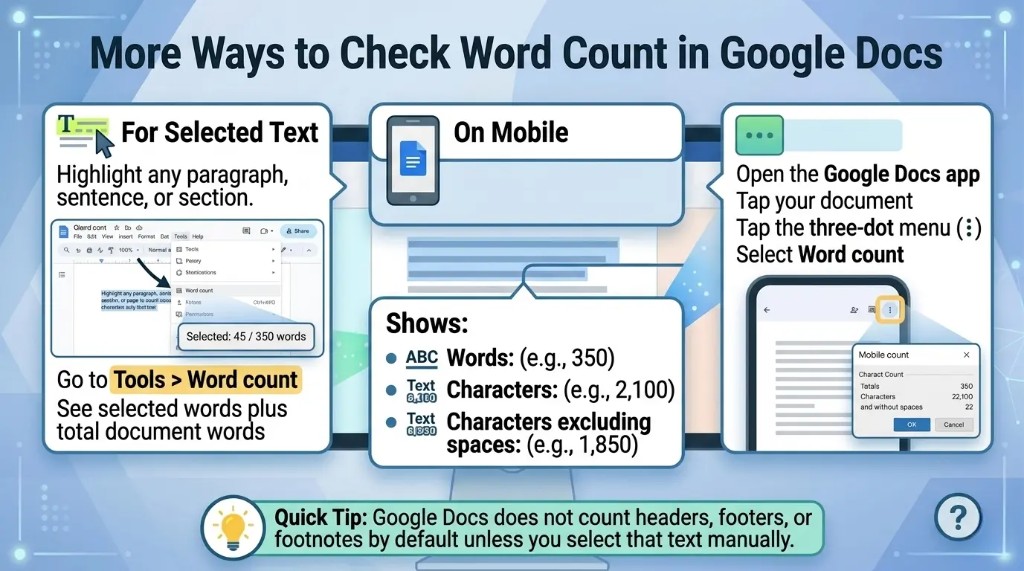
How to Check Word Count in Google Docs on Mobile
Word count is available in the Google Docs for Android or iPhone app. Follow these steps:
- Go to Google Docs app.
- Open the document to examine.
- Click on the three dots in the upper-right corner.
- Select Word count.
- Count words, characters and characters without spaces.
While convenient for use when reviewing documents on the go, the mobile app doesn't provide quite as easy access to live word count as the desktop version.
How to Check Word Count on Google Docs for iPhone
To check word count on iPhone:
- Access the Google Doc app.
- Tap the document.
- Click on the three dots on the top-right corner.
- Choose Word count.
- Re-check word and character limits.
Steps are very similar for iPad users.
How to Check Word Count on Google Docs for Android
On Android, to check the word count:
- Open Google Docs app.
- Open your document.
- Click on the three dots menu.
- Tap Word count.
- Check the total words and characters.
This is available for most Android phones and tablets using Google Docs app.
Why Word Count Matters in Google Docs
There are numerous kinds of writing that take into account word count, such as:
- School essays
- College assignments
- Blog posts
- SEO articles
- Research papers
- Reports
- Manuscripts
- Grant proposals
- Cover letters
- Social media captions
- Website content
There are numerous assignments that require a certain number of words. A word count option enables you to make sure that you are not sending too short or too long of content.
- Google Docs word count does not automatically count the number of words in the header/footer or footnotes unless you select text in those sections. Google's support page indicates that if no section is selected on the page, then word count is not included in the headers, footers, and footnotes.
- This detail is one that I personally believe is important as footnotes, headers and footers may not count towards the word count unless they are specifically selected. This is important for academic papers, legal documents, and formatted reports where important text may be found in the footnotes or in the headers.
Can You Check Character Count in Google Docs?
Yes. Google Docs displays both (for more on the difference between word count and character count, see our word count vs character count guide):
- Characters
- Characters excluding spaces
It can be useful for things like metas, social media posts, forms, abstracts, and platforms with character limits. Click Tools > Word count or press the keyboard shortcut to count the number of characters.
For Example: When writing a 1,000-word blog post or a 500-word homework, you can see the word count while you're writing and don't have to open the Word count box over and over.
Can You Check Word Count for Multiple Google Docs at Once?
Google Docs doesn't offer a word counter that can be used for multiple documents simultaneously. If you want to find out the word count for each document, you will have to open them one by one and check or if all the text is combined, open them as one document to check them all. If writing large, it may be easier to track word count if the chapters or sections are contained in a single organized file.
Google Docs Word Count vs External Word Counters
For most writing, the word counter is included in Google Docs. It is quicker, more secure and more user-friendly than manually copying your content into a third-party application. But, if you have additional information you need, like:
- Keyword density
- Reading time
- Sentence length
- Readability score
- Paragraph count
Google Docs already has the necessary tools for easy word count, character count and page count.
Interesting Research Facts
Full citations are available in Sources below.
Google Docs supports longer, faster writing
Students often find Google Docs easier and more engaging than traditional word processors because it supports real-time collaboration, formatting, and revision tracking.
Source: Using Google Docs for Collaborative Writing Feedback With International Students
Google Docs word count in medical readability research
Researchers used Google Docs word-count tools to measure response length before applying Flesch-Kincaid readability formulas to AI-generated patient education content.
Source: JMIR formative research on AI-generated patient education readability
Word count reflects idea development
Academic writing research links unusually short essays with weak idea development, showing that tracking length can help students monitor writing progress.
Source: Academic essay length and idea development (PolyU institutional repository)
Google Docs feedback tools improve correction quality
Research on Google Docs collaborative writing found that automated feedback helped resolve lexical and grammatical issues more effectively than teacher-led feedback alone.
Digital writing tools increase revision and engagement
A graduate research review found that digital tools support feedback, revision, collaboration, and stronger student ownership of writing.
Source: Using digital writing tools in supporting student writing
Frequently Asked Questions
1. How do I check word count in Google Docs?
Go to Tools > Word count. You can also use Ctrl + Shift + C on Windows/Chromebook or Command + Shift + C on Mac. Google confirms this shows pages, words, characters, and characters excluding spaces.
2. Can Google Docs show word count while I type?
Yes. Open Tools > Word count, then check Display word count while typing. A small word count box will appear in the lower-left corner.
3. Can I keep word count turned on by default?
Google Docs does not appear to offer a built-in setting to enable live word count by default for every new document. This is a common request in Google Docs communities and Reddit discussions.
4. Does Google Docs count headers, footers, and footnotes?
Not by default. Google says word count applies to the document body and excludes headers, footers, and footnotes unless you select that text manually.
5. Can I check the word count of selected text only?
Yes. Highlight the text first, then open Tools > Word count. Google Docs will show the selected word count along with the total document count.
6. Can I check word count on the Google Docs mobile app?
Yes. Open the document, tap the three-dot menu, then select Word count. This works on both Android and iPhone/iPad.
7. Why is my Google Docs word count not showing?
Try refreshing the page, reopening the document, checking another browser, disabling extensions, or using the keyboard shortcut. Some users have reported the word count pop-up not appearing in community discussions.
8. Can I see the word count for all Google Docs tabs at once?
The built-in word counter may only show the count for the current tab. Some users use Google Apps Script or extensions as a workaround for counting across multiple document tabs.
Need to count words in other tools? See our guides on word count in Microsoft Word and counting words in a PDF, or paste your text into our free word counter.
How we reviewed this article:
Share this article