How to Check Word Count in Microsoft Word?
Learn how to count words in Microsoft Word, check characters, pages, and selected text, and track document length easily in Word, Mac, and Word Online.
Quick Summary
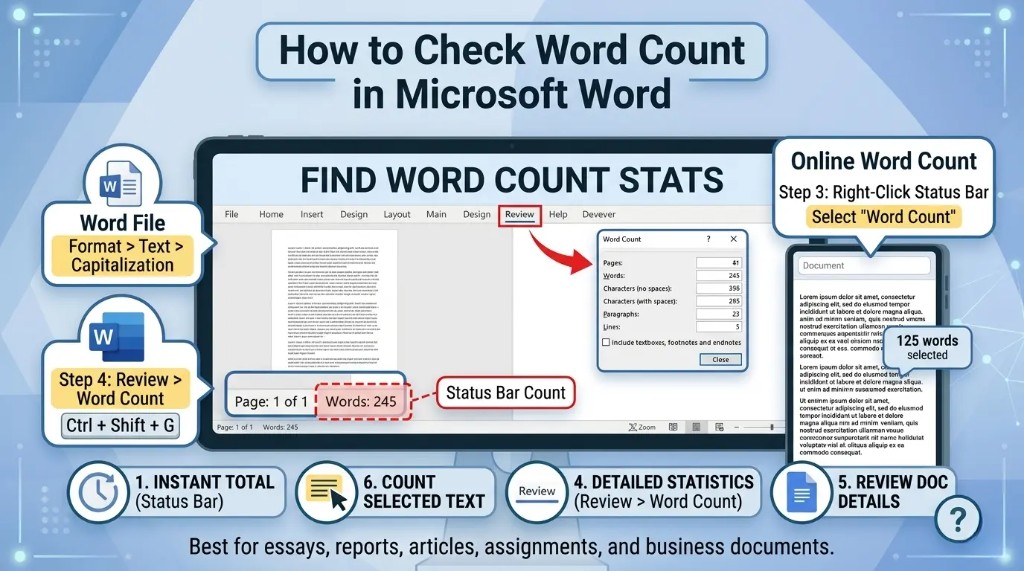
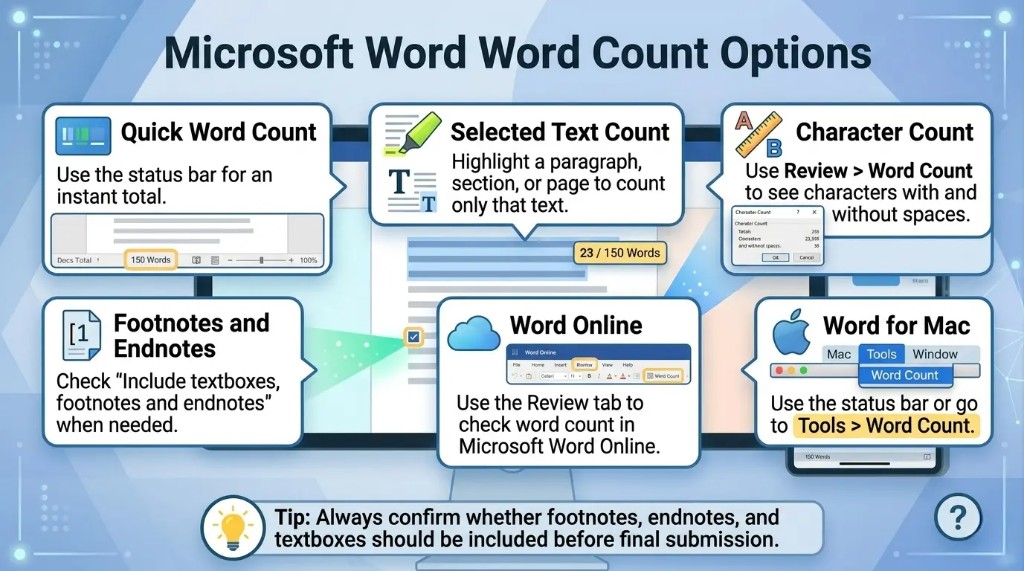
- View word count instantly: Open a Word Document and check the bottom left of the Word window to see the word count at a glance.
- View detailed statistics: Review → Word Count provides detailed statistics on words, pages, characters (with and without spaces), paragraphs, and lines.
- Count selected text: Highlight a sentence, paragraph, page or section to view a word count for that selected text only.
- Add or remove additional text: Add or remove footnotes and endnotes, as needed, from your document using the Word Count dialog box.
- Track while writing: Use the word count feature as you type to prevent running out of allotted words when you are composing an essay, report, blog post, manuscript or assignment.
What Is Word Count in Microsoft Word?
A Word count in Microsoft Word will tell you how many words are in a document or selected section of a document. Microsoft Word can also display statistics for related documents, like:
- Pages
- Characters with spaces
- Characters without spaces
- Paragraphs
- Lines
It can be extremely useful if you have to adhere to a word count or formatting constraints. Using Microsoft Word's word count is great since it provides the count directly in the document, without the need for an outside website.
How to Check Word Count in Microsoft Word Using the Status Bar
The most convenient way to count words in Microsoft Word is to use the word count in the status bar at the bottom of the document window. I generally rely on the status bar to keep an eye on my word count as I write or edit.
Steps to Check Word Count from the Status Bar
- Open a document in Microsoft Word.
- Open a Word document and view the bottom left corner of the Word window.
- Look in the word count in the status bar.
- Numbers indicated are the total words in the document.
For example, if the status bar says 1,250 words, your document contains 1,250 words.
What to Do If Word Count Is Not Showing
If you do not see the word count on the status bar:
- Click on the status bar at the bottom of Microsoft Word and right click anywhere in the status bar.
- A menu of customizations will be displayed.
- To enable Word Count, click on it.
- Now the word count should be visible on the status bar.
This approach is fast and if you just want to view the word count.
How to Check Detailed Word Count in Microsoft Word
For more information than the word count, there's a detailed Word Count dialog box at your disposal in Microsoft Word. The Word Count box is useful when I want to know more: It provides me with words, pages, characters, paragraphs, and lines in one place.
Steps to Open the Word Count Dialog Box
- Open Word Document.
- Select Review tab on the top menu.
- Click on Word Count in the Proofing group.
- You will see a Word Count window that will provide you with statistics.
You should see the Word Count dialog box that displays:
- Pages
- Words
- Characters without spaces
- Characters with spaces
- Paragraphs
- Lines
It's the best choice if you want to see the word count for your entire document.
How to Check Word Count for Selected Text
Microsoft Word also permits to check word count of the selected paragraph, section, sentence or page.
Steps to Count Words in Selected Text
- Select the text you wish to count.
- Check at the bottom of the Word window for the status bar.
- Word will display the number of words selected as well as the total number of words.
For Example, you may see:
250 of 1,500 words
This translates to 250 words in the selected text, and 1,500 words in the full text.
You can highlight the text and then select the following options:
Review > Word Count
The Word Count dialog box will display only the statistics for the text that you have selected.
How to Include or Exclude Textboxes, Footnotes, and Endnotes
Depending on what you set, Microsoft Word can count the number of words in textboxes, footnotes, and endnotes.
Steps to Check This Setting
- Click the Review tab.
- Select Word Count.
- In the Word Count window, check the Include textboxes, footnotes and endnotes option.
- Click on the checkbox if you want to include, or uncheck it if you don't want to include.
Be careful with using this option when writing academic papers, legal documents, research reports, or manuscripts where footnotes and endnotes can impact the word count.
How to Check Word Count in Microsoft Word for Mac
The process is similar on Microsoft Word for Mac. I find this useful when I only want to check the word count of one paragraph, section, or introduction.
Method 1: Use the Status Bar
- Open your document in Word for Mac.
- Look at the bottom of the window.
- The word count should appear in the status bar.
- If it does not appear, right-click or control-click the status bar and enable Word Count.
Method 2: Use the Tools Menu
- Open your document.
- Click Tools in the top menu.
- Select Word Count.
- Review the document statistics in the Word Count box.
Word for Mac may have slight interface differences depending on the version, but the word count feature is generally easy to find.
How to Check Word Count in Microsoft Word Online
Microsoft Word Online also includes a word count feature.
Steps to Check Word Count in Word Online
- Open your document in Microsoft Word Online.
- Click the Review tab.
- Select Word Count.
- View the word count for your document.
You may also see the word count at the bottom of the browser window, depending on your layout and settings. Word Online is useful for quick edits, but the desktop version of Microsoft Word usually provides more complete document statistics.
Keyboard Shortcut for Word Count in Microsoft Word
Microsoft Word does not always use the same keyboard shortcut for word count across all versions, but you can usually open the Word Count dialog box from the ribbon. On many Windows versions, you can use ribbon shortcuts:
- Press Alt.
- Press R to open the Review tab.
- Press W to open Word Count.
This can vary slightly depending on your Microsoft Word version and keyboard settings. For case shortcuts in Word, see our keyboard shortcut guide.
Why Word Count May Be Different in Microsoft Word
The word count in Microsoft Word might not match another online word counter or writing tool/content management system. Common reasons include:
- One tool includes footnotes or endnotes, the other doesn't.
- The boxes with text in them are counted separately.
- Symbols, numbers and special characters might be processed differently.
- Words with hyphens may be counted separately.
- A header and footer may or may not be provided.
- The number of comments is not the same from tool to tool.
When you're pitching to a school, publisher, client or platform, review the word count guidelines before completing your document.
How to Check Word Count While Typing
The status bar updates automatically as you write. This lets you monitor your word count in real time without opening the Word Count dialog box repeatedly. This is especially useful when writing:
- Essays
- Blog posts
- Articles
- Reports
- Cover letters
- Book chapters
- Research papers
- Proposals
If you are working toward a target word count, keep the status bar visible while writing.
Best Practices for Managing Word Count in Microsoft Word
To use word counts well:
- Make sure to have the word count on the status bar.
- For more detailed statistics, use the Word Count dialog box.
- When editing, ensure that this is done on individual segments.
- Check if footnotes, endnotes and textboxes are to be included.
- Check final word count before submitting/publishing.
- If you need to use more than one tool, be sure to have an understanding of how each tool counts words.
These are some of the habits that can help you write within your word count and avoid formatting problems at the last minute.
Interesting Research Facts
Full citations are available in Sources below.
Word count as a productivity measure
Research shows word-count-related writing metrics accounted for a large share of variance in student writing outputs, making word count a common benchmark for tracking progress.
Source: Oral Language and Writing Skills in the First Years of Formal Education
Word count helps reduce wordiness
Academic publishing often enforces strict limits. Regularly checking word count helps writers trim redundant phrases and meet submission requirements.
Source: Strategies on Reducing Wordiness to Enhance Readability in Academic Writing
Accessibility of count tools
Studies note that accessing word count, character count, and page numbers can be harder for screen-reader users, which may affect productivity.
Word count in writing analysis
Computational writing tools use total word count to derive measures such as lexical diversity and text complexity.
Source: Advancing Research in Second Language Writing Through Computational Tools
Structuring documents by target length
Writers use target word counts to balance introductions, body sections, and conclusions—especially in academic work.
Source: How to Approach Academic Writing
Frequently Asked Questions
How do I check word count for selected text in Microsoft Word?
Highlight the text you want to count. The status bar will show something like 250 of 1,500 words, meaning the selected section has 250 words and the full document has 1,500 words. If it does not appear, right-click the status bar and enable Word Count.
How do I exclude footnotes from word count in Word?
Go to Review > Word Count, then uncheck Include textboxes, footnotes and endnotes. This helps when your essay or document limit applies only to the main body text.
Why is my Word count different from Google Docs or online word counters?
Different tools may count footnotes, endnotes, textboxes, references, symbols, and citations differently. Always check your instructor's, publisher's, or client's rules before submitting. See also our guide on whether citations count in word count.
Can Microsoft Word count words up to a specific point in the document?
Word does not automatically show “word count up to cursor position.” The easiest workaround is to select the text from the beginning of the document to that point and check the selected word count.
Does Word count text inside textboxes?
Word can include textboxes in the count if the option Include textboxes, footnotes and endnotes is selected in the Word Count dialog box.
Why is the word count not showing at the bottom of Word?
The word count may be disabled on the status bar. Right-click the status bar at the bottom of Word and select Word Count to display it again.
Can I check character count in Microsoft Word?
Yes. Go to Review > Word Count to see characters with spaces and characters without spaces. For a full walkthrough, see our guide on character count in Microsoft Word.
Does Word Online show word count?
Yes. In Word Online, use the Review tab and select Word Count. Some options may be more limited than the desktop version, especially for detailed settings like footnotes.
How we reviewed this article:
Share this article