How to Count Words in Excel?
Count words in Excel formulas, helper columns, ranges, and using Power Query with examples.
Quick Summary
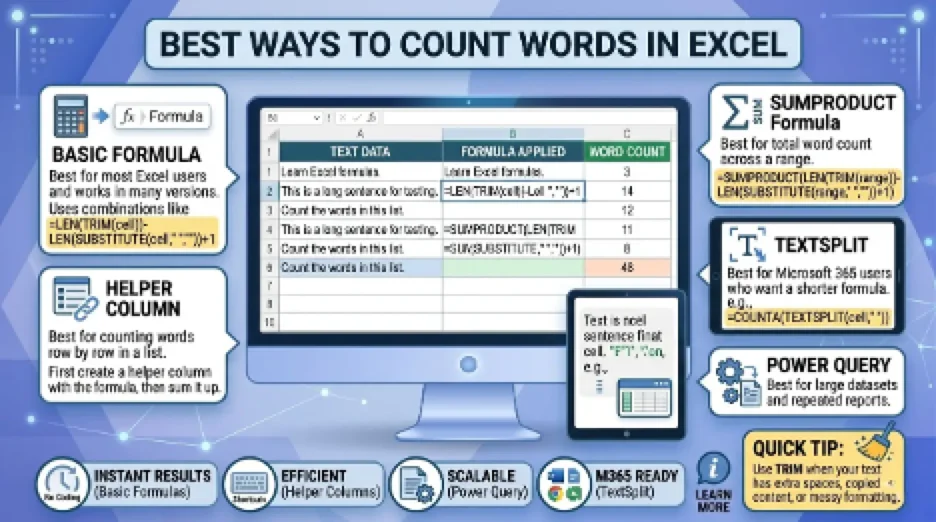
- To count the words in one cell of Excel, use the formula LEN, TRIM, and SUBSTITUTE to calculate the number of spaces between words and then add 1.
- In the formula I suggest using TRIM as this will also strip out any extra spaces and make word count more accurate.
- If the formula applies to multiple rows, you can copy it down a helper column to count words for each cell.
- To total words in a range, one of the following options works: use SUMPRODUCT or create a helper column and then use SUM.
- If you are using Microsoft 365, consider TEXTSPLIT for smaller and/or more frequent word count jobs, and Power Query for larger and/or more complex word count jobs.
The Basic Word Count Formula in Excel
Use this formula to count the words in a cell:
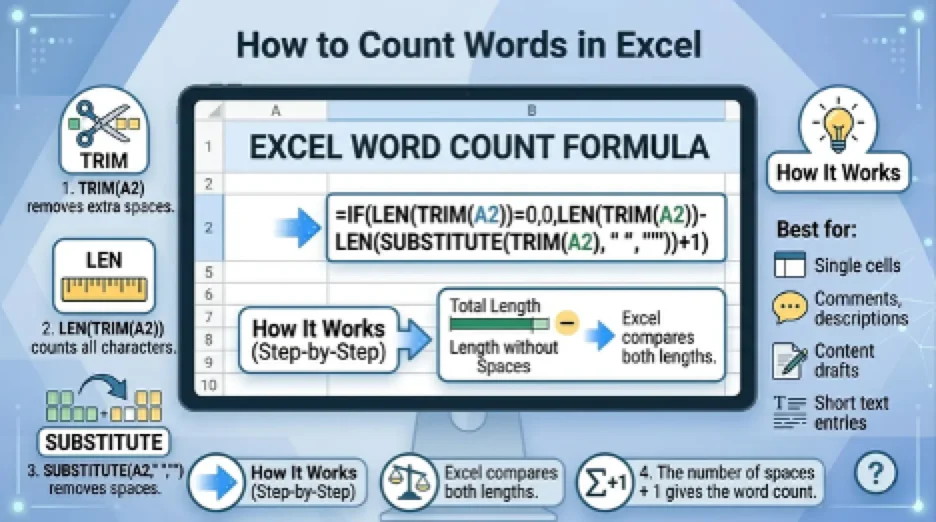
=IF(LEN(TRIM(A2))=0,0,LEN(TRIM(A2))-LEN(SUBSTITUTE(TRIM(A2)," ",""))+1)
This formula will count the number of words in A2.
I find this formula works well in most versions of Excel and is more robust when dealing with blank cells than a simple formula.
How the Formula Works
The formula will be based on the difference in length of the text with and without spaces.
Here is the logic:
LEN(TRIM(A2))
This will return a number representing the number of characters that the cell contains, excluding extra spaces.
SUBSTITUTE(TRIM(A2)," ","")
This deletes all spaces from the text.
LEN(TRIM(A2))-LEN(SUBSTITUTE(TRIM(A2)," ",""))+1
This will count the number of spaces and then add 1. Typically, words will be separated by spaces, so the number of words will be equal to the number of spaces plus one.
The IF part prevents returning 1 if the cell is empty.
I like this technique because it is fairly simple and uses Excel logic: count the spaces between words and then add 1.
Example
Assume that A2is the cell containing:
Using Excel is easier when it comes to data analysis.
Use:
=IF(LEN(TRIM(A2))=0,0,LEN(TRIM(A2))-LEN(SUBSTITUTE(TRIM(A2)," ",""))+1)
The result will be:
5
I tested this example, and the formula returns 5 because the cell has five words.
Count Words in a Single Cell
To count words in one cell, enter this formula next to your text:
=IF(LEN(TRIM(A2))=0,0,LEN(TRIM(A2))-LEN(SUBSTITUTE(TRIM(A2)," ",""))+1)
Then press Enter.
This is the most common way to count words in Excel. I tried this example and it returned 5 as there are five words on the cell.
Count Words in Multiple Cells Separately
Enter the formula in B2 if you have text in column A and you want to count the number of words in each row:
=IF(LEN(TRIM(A2))=0,0,LEN(TRIM(A2))-LEN(SUBSTITUTE(TRIM(A2)," ",""))+1)
This is the way to go if you want to have a word count for each row.
Then, copy the formula to the bottom.
Example:
| Text | Word Count |
|---|---|
| Learn Excel formulas | 3 |
| Count words in a spreadsheet | 5 |
| Data cleaning tips | 3 |
Useful for when every row has individual text, comments, descriptions, responses, etc.
Count Total Words in a Range
To count how many words are in a range, like A2:A10 use:
=SUMPRODUCT(IF(LEN(TRIM(A2:A10))=0,0,LEN(TRIM(A2:A10))-LEN(SUBSTITUTE(TRIM(A2:A10)," ",""))+1))
This formula is directly usable in the newest versions of MS Excel or newer versions of MS 365.
If you are using an older version of Excel, you might need to type it in as an array formula:
Ctrl + Shift + Enter
Rather than Enter.
When I want one word count from multiple cells, I use this formula.
Count Words in a Range Using a Helper Column
An easier way is a helper column.
In B2, enter:
=IF(LEN(TRIM(A2))=0,0,LEN(TRIM(A2))-LEN(SUBSTITUTE(TRIM(A2)," ",""))+1)
Record it on the bottom line for all the rows.
Then use:
=SUM(B2:B10)
This approach is easier to examine and troubleshoot, particularly in the case of large spreadsheets.
Count Specific Words in Excel
In some cases, it is desired to find out how many times the word occurs in a cell.
For instance, if the word Excel occurs in a cell A2, then count the number of times it occurs is:
=(LEN(A2)-LEN(SUBSTITUTE(A2,"Excel","")))/LEN("Excel")This formula is sensitive to upper and lower case.
That means it counts Excel but not excel.
Count a Specific Word Without Case Sensitivity
If you want to count a word, no matter if it is written in capital letters or lowercase letters, use:
=(LEN(LOWER(A2))-LEN(SUBSTITUTE(LOWER(A2),"excel","")))/LEN("excel")This counts:
- Excel
- excel
- EXCEL
as the same word.
Count a Specific Word in a Range
To count the number of times a word occurs in a range:
=SUMPRODUCT((LEN(LOWER(A2:A10))-LEN(SUBSTITUTE(LOWER(A2:A10),"excel","")))/LEN("excel"))This will sum the value of the word excel in cells A2:A10.
Count Words with Extra Spaces
The word count formula may be interrupted by extra spaces. For example:
Count words in Excel
The TRIM function corrects for this by trimming any extra spaces between words.
For this reason, this is the formula that is recommended:
=IF(LEN(TRIM(A2))=0,0,LEN(TRIM(A2))-LEN(SUBSTITUTE(TRIM(A2)," ",""))+1)
If not, the outcome may be wrong, if TRIM is not used.
Count Words in Excel with Line Breaks
The basic formula does not necessarily give the correct word count when there are line breaks in cells. Line breaks can be removed by replacing them with spaces.
Use this formula:
=IF(LEN(TRIM(SUBSTITUTE(A2,CHAR(10)," ")))=0,0,LEN(TRIM(SUBSTITUTE(A2,CHAR(10)," ")))-LEN(SUBSTITUTE(TRIM(SUBSTITUTE(A2,CHAR(10)," "))," ",""))+1)
Useful when copying text from web pages, forms, emails or documents.I use this version when I copy text from a website, form, email or a document.
Count Words Using TEXTSPLIT in Excel 365
If you use Microsoft 365, you can count words with TEXTSPLIT:
=COUNTA(TEXTSPLIT(TRIM(A2)," "))
It's more concise and easier to read.
If the cell can be blank, however, use:
=IF(TRIM(A2)="",0,COUNTA(TEXTSPLIT(TRIM(A2)," ")))
This approach works best for the newer versions of Excel.The LEN, TRIM, and SUBSTITUTE formula is the safest formula to use in most of the word count steps in Excel.
Count Words Using Power Query
When you have to count words in a large data set, Power Query can be helpful.
To count the number of words in a Power Query:
- Select your data.
- Go to the Data tab.
- Click From Table/Range.
- Open data using Power Query Editor.
- Add a "Custom Column".
- Break a text up into words using a formula.
- Count the items after they are made.
- Import the data into Excel.
Power Query is also recommended for repetitive reporting as data can be refreshed when it changes.
Best Formula for Counting Words in Excel
For most users, this is the best Excel word count formula:
=IF(LEN(TRIM(A2))=0,0,LEN(TRIM(A2))-LEN(SUBSTITUTE(TRIM(A2)," ",""))+1)
It's reliable, works with most versions of Excel, works with blanks, and decreases errors from excess spaces.
Does the formula work with blank cells?
The recommended formula works with blank cells because it uses IF to return 0.
Interesting Research Facts
Full citations are in Sources below.
Spreadsheets are mostly used to organize text and numbers
Excel doesn't just have to be used for complex formulas and charts. For basic text and numeric data, many users will use spreadsheets and word-count formulas will be useful for day-to-day content checking.
Source: Spreadsheets are mostly used to organize text and numbers
Manual word counting can increase errors
Typing or counting text in Excel can result in errors, particularly if you are working with large amounts of text data. Automated formulas minimise the chances of human error.
Word counting is the base of text analysis
One of the basic steps of text analytics and NLP is counting words. It facilitates the conversion of written text into measurable data to be analyzed more easily.
Clear formulas help reduce spreadsheet mistakes
Errors often show up in spreadsheets, particularly if the formulas are complex or not properly formatted. The process is easier and safer with a clean, copy/paste formula
Word limits matter in professional workflows
Before using word count in a translation, research, reporting or content workflows where length is a critical factor, Excel can be used to keep track of word counts.
Frequently Asked Questions
1. How to count words in excel in VBA?
Yes. VBA and Macros can be avoided when counting words by using the LEN, TRIM, and SUBSTITUTE formula.
2. How to correct the word count in a blank cell in an Excel worksheet?
It occurs if only spaces are counted and 1 is added. Return 0 if the cell is blank using an IF condition.
3. How to count duplicate words in the same cell?
Use this formula:
=(LEN(A2)-LEN(SUBSTITUTE(A2,"word","")))/LEN("word")4. How to count a word across a whole column?
To get the count of each word, regardless of the number of times it appears in a cell, use a range formula with SUMPRODUCT.
5. Is it possible to count words with punctuation in Excel?
Of course, sometimes punctuation can make a difference in terms of accuracy. Ideally, strip out punctuation or use functions in Excel 365, such as TEXTSPLIT and REGEXREPLACE, to get cleaner results.
6. Can COUNTIF be used to count words?
COUNTIF can be used to count the number of cells that have a word in them, but it will not count multiple copies of the same word within a cell.
7. What is the formula to count words in several cells?
Apply the word count formula in a helper column, extend it down and then use SUM to calculate the total.
8. What formula is the most optimum for most users?
This formula is recommended in most circumstances:
=IF(LEN(TRIM(A2))=0,0,LEN(TRIM(A2))-LEN(SUBSTITUTE(TRIM(A2)," ",""))+1)
How we reviewed this article:
Share this article