How to Count Words in InDesign
Know how to use the Info panel, selected text, threaded frames and scripts to count words in the entire document in InDesign.
Quick Summary
- To count the number of words on a text frame in InDesign, select the text frame and use the Type Tool and click Window > Info.
- To select text to count, highlight a headline, caption, paragraph, sidebar, or product description and then review the Info panel.
- If the text is bound to a frame with a thread, InDesign allows you to view the total word count for the entire connected text (not the visible frame on one page).
- In a full document with numerous unlinked text frames you may need to count each individual story, extract the text or use an InDesign script.
- Remember to check for text that may be overset before you believe the final word count; there can be hidden text in the story.
Can You Count Words in InDesign?
Of course, you can use the Info panel to count words in InDesign. According to Adobe's official instructions you can put the insertion point within a text box and view the counts for the entire threaded story or select specific text and view the counts only for the selected text. Next, go to Window > Info to open the window. The Info panel shows a set of characters, words, lines and paragraphs.
This is the quickest built-in method to count the number of words in Adobe InDesign.
How to Count Words in InDesign Using the Info Panel?
To check the word count in InDesign…
- Open an InDesign file.
- Click on the Type Tool in the toolbar.
- Select the text box that contains the text you want to review.
- Click on Window > Info.
- Check the Words value in the Info panel.
- Press F8 to quickly open the Info panel.
This Info panel displays a number of useful text statistics:
- Characters
- Words
- Lines
- Paragraphs
This is most effective in text that is contained within one text frame or multiple threaded text frames. I recommend using the Type Tool directly in the text area before you count to see the object's detail, as selecting a frame only may display object's detail as opposed to text's detail.
How to Count Words in Selected Text?
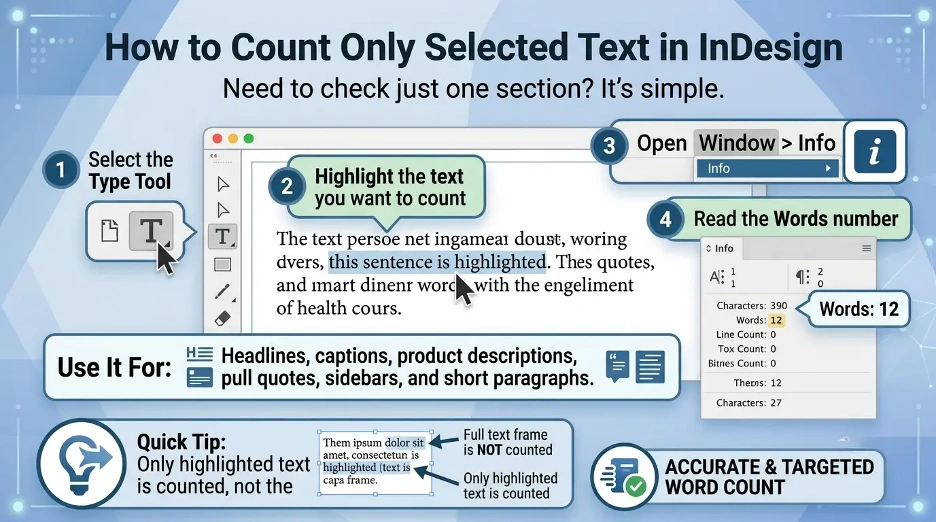
To count only part of your text:
- Choose the Type Tool.
- Click and highlight the text you wish to count.
- Open Window > Info.
- Verify Words count.
Only the selected text, not the entire text frame, will be counted. Useful for checking the length of a headline, paragraph, caption, sidebar, pull quote or product description. When I need to count a headline, caption, sidebar or short product description I use this method. For exact counts, I also use an online word counter.
How to Count Words in a Text Frame?
To count the words in a single text frame:
- Click the Type Tool.
- Tap inside the text box.
- Open the Info window by clicking on Window > Info.
- Check word count.
Remember not to pick the frame with just the Selection Tool. If you click on the frame itself rather than on the text cursor inside the frame, the Info panel might display an object's information rather than statistics for the text.
How to Count Words in Threaded Text Frames?
Threaded text frames are frequently required in InDesign, for instance in books, magazines, catalogs and long-form layouts. The frames are joined and text is continuous from frame to frame.
Count words in a story with a thread:
- Click on the Type Tool.
- To select any of the threaded text frames, click anywhere in the frames.
- Open Window > Info.
- Check the word count in the Info pane.
InDesign counts words within a threaded story, not only on the visible frame, when the cursor is in the story. This is helpful for articles, chapters and multi page layouts. With threaded text frames, I click to see the word count in any connected frame to view the word count for the entire story.
How to Count Words in an Entire InDesign Document?
The number of words in an entire InDesign document will be determined by the way the document is created.
When all text frames are threaded together, you can click in the threaded story and utilize the Info panel. The entire story will be counted in InDesign.
If you have more than one unlinked text frame, however, InDesign will not automatically add up all your text frames to one word count in the Info panel. If so, you have three choices: Unless all of the main text frames are threaded together, I don't use one Info panel count for a complete document.
Option 1: Count Each Text Frame or Story Separately
Look inside each text frame or threaded story and note the number of words on the Info panel. Then add up the totals.
This is suitable for low-quality small projects like flyers, short brochures, posters, and one page. You can also paste the text into an online word counter to verify the total.
Option 2: Export the Text and Count It Elsewhere
If you have a longer text, export or copy it to a word processor like Microsoft Word or Google Docs and use the word count feature.
This may be helpful if you have multiple unthreaded text boxes in your InDesign document.
Option 3: Use an InDesign Script
An InDesign script can be used to count words over several text frames and stories for a large publication, such as a book, catalog or report. This is a good choice if you want the full word count of your document and your text frames aren't threaded.
Scripts are particularly beneficial for:
- Books
- Annual reports
- Catalogs
- Magazines
- Large brochures
- Many documents containing separate text boxes on multiple pages
When you're in constant need of word counts for an entire document, an or script can drastically reduce the amount of manual work.
How to Count Paragraphs and Lines in InDesign?
The Info panel also includes paragraph and line count information. These are useful when working with layout oriented documents where space, readability and text flow are important.
Click on the line number to see the paragraph and line counts:
- Select a text frame using the Type Tool.
- Open Window > Info.
- Look at the values on the Lines and Paragraphs.
This is useful for balancing column widths, checking if text overflows or for comparing the length of copy between various parts of a design.
How to Check Overset Text When Counting Words?
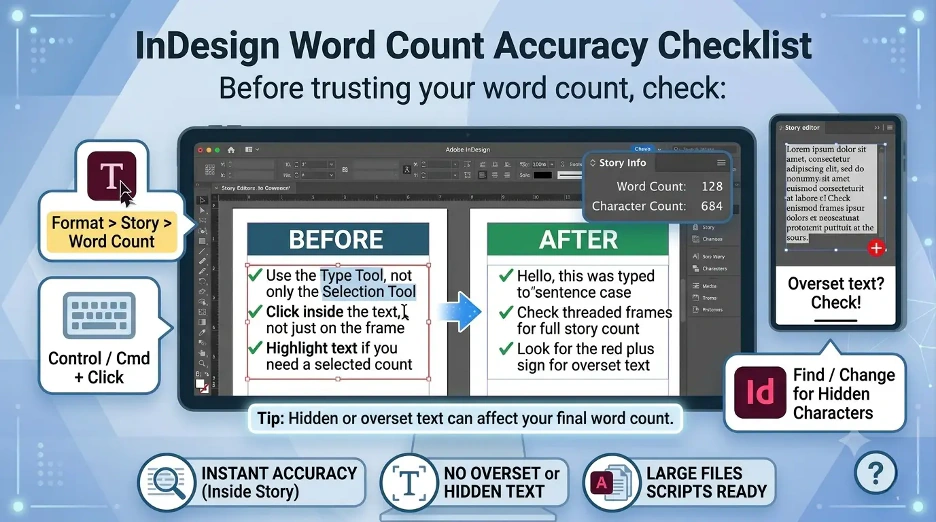
Overset text is text that is set in a frame, but which does not display because the frame is too small. A red plus sign will typically appear in the text frame in InDesign when there is overset text in a text frame.
Even if you know you have a word count, review for overset text. The text that is not visible in your final design may be included in your count if your layout contains hidden overset text.
When there is overset text in the text box, to correct it:
- Pay attention to the red plus sign on text frames.
- Make the text frame larger, smaller, adjust spacing or move the text to another frame.
- Double check word count in the Info panel.
It is important to do this before printing a PDF, printing a file, or sending the final artwork for print. Even if it doesn't change the word count, I always check for overset text, as it will.
Best Practices for Accurate Word Count in InDesign
Here are some tips for the most accurate word count:
- Don't use the Selection Tool, use the Type Tool.
- Click on the text, not just on the frame.
- Open the Info panel with the shortcut: Window > Info or F8.
- Select text with partial selection (to only select a part of the word count).
- Use text frames when narrating longer stories.
- Be sure to look for runover words before printing.
- When counting large documents, use a script or external word processor.
- If you require separate counts, keep the body copy, captions, headers and sidebars in separate stories.
InDesign Word Count Shortcut
In InDesign you can get to word count in the quickest manner by:
Window > Info
Or use the keyboard shortcut:
F8
When using the Info panel, select a text frame using the Type Tool and edit it. The word count will be seen in the panel. For me, the Info panel is best suited for selected text, single frames or threaded stories. If there are a lot more separate text boxes in a larger file, I like to count each story individually or use a script. For a quick cross-check, I also paste the text into our free word counter.
Interesting Research Facts
Full citations are in Sources below.
Alt Text Character Limits
If creating PDFs in InDesign, stay within limits of alt text characters. Ideally, the best practice is less than 125 characters, and a maximum of 250 characters for longer descriptions.
Source: Alt Text Character Limits
AI Text Segmentation in Adobe Tools
AI Text Segmentation for classification of semantic product-search in fixed text blocks (e.g., segments of 128 tokens) in the context of Adobe-related AI research.
Readability and Word Counts
If the document is laid out and has a lot of text, style changes should not compromise the printability of the document. Flesch scores of 80–90 are good for easy-to-read, engaging writing.
Source: Readability and Word Counts
Typography and Dyslexia
In typography, word count is relevant in layout design because leading, tracking and length of paragraphs can help readers with dyslexia to read more easily.
Source: Typography and Dyslexia
AI and Graphic Layout Processing
Today's AI-based design tools consider layouts as layered systems and process text, image, vector and structure in tandem to enhance design generation.
Source: AI and Graphic Layout Processing
Frequently Asked Questions
1. Is there a way to count the words in the entire document in InDesign?
Yes, but if your text frames are threaded it will be easy. If there are numerous unlinked text boxes in your document, it may be necessary to count each story individually, export the text to Microsoft Word or Google Docs, or use a script.
2. How can I determine the word count for my InDesign document when the word count in Microsoft Word is different?
Some items can be counted differently in InDesign than in Word, particularly numbers, hidden text, overset text, special characters and layout based text. Never assume that the actual text without reading it first.
3. Can I count the number of words in one text box only?
Yes. Using the Type Tool, click within the text window and select Window > Info. The word count will be displayed in the Info panel for that text frame or story.
4. Can I count Text Only?
Yes. Highlight the text you wish to count, and then have a look at the Words value in the Info panel. It is suitable for headings, captions, sidebars and brief descriptions.
5. Does InDesign consider overset text?
InDesign can contain text that is not visible on the page, but is part of the story. Before relying on the final word count, always be sure to check for the red plus sign and correct overflown text.
6. Does anyone know of a shortcut to get the number of words in InDesign?
Yes. We recommend you use the F8 shortcut to open the Info panel quickly, and select your text with the Type Tool and check the word count.
7. How to count many unlinked text boxes?
Count individual text frames or individual stories for small files. In most cases, using an InDesign script will be more time- and accurate when working with large books, catalogs, or reports. You can also export the text to Microsoft Word or use an online word counter for a quick total.
How we reviewed this article:
Share this article