How to Count Words in PowerPoint?
Count words in PowerPoint via the file properties, Word export, Outline View, speaker notes and online tools.
Quick Summary
- A simple word count can be displayed in PowerPoint from File > Info > Properties but the result is dependent on the version of PowerPoint and your operating system.
- If you really need the number, I suggest exporting the presentation to Microsoft Word as speaker notes will be included, making it more accurate.
- When you want to only count the visible slide text and not speaker notes or hidden text, use Outline View.
- Text within an image, screenshot or scanned file is generally not included in PowerPoint and will require OCR or manual typing.
- For timed presentations: Count your speaker notes separately as they are typically the words you will speak.

Why Count Words in PowerPoint?
When time limits are set on your PowerPoint, you will know the word count, which will help you manage the duration of your presentation, enhance the readability and prepare for time limits. It can be particularly helpful for business decks, academic presentations, webinars, training slides, sales pitches and conference talks.
Slides with long words can end up being cramped, hard to read, and confusing. If you're giving a presentation without support, a low word count might indicate that your slides require more context.
Can You Count Words Directly in PowerPoint?
Yes, but not quite.
Basic PowerPoint document statistics, such as number of words, can be displayed in PowerPoint; the options available vary based on the version of PowerPoint and operating system. The built-in word count may include the text on the slides and notes, and may not provide the same level of control as you would have in Microsoft Word.
If you need to count the number of speakers, it's best to copy the content into Word for the most accurate count, particularly when the speaker's note is important. As far as I can tell, PowerPoint's word count is good for a good ballpark figure but not for an exact count when I need one.
Method 1: Check Word Count in PowerPoint on Windows
The powerpoint for windows contains presentation statistics which can be accessed via the file properties panel.
To count words in PowerPoint on Windows:
- Open PowerPoint.
- Click on File at the top left.
- Click on the left menu bar, select Info.
- On the right side, search for Properties.
- Use the Show All Properties option if not all properties are displayed.
- Check for the Words field.
This number is an approximation number of words for the presentation. This is my tip if I simply want to see how much text there is in my presentation.
Important Note
The number of words displayed in PowerPoint may not always distinguish between the words on the slides and the speaker's words. For a more detailed count, use Microsoft Word.
Method 2: Count Words in PowerPoint on Mac
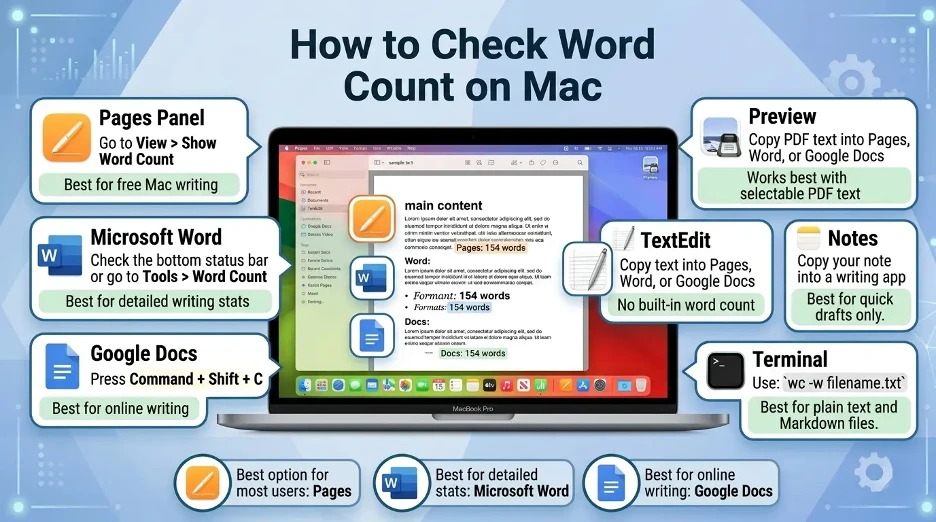
Word count might not always appear the same in PowerPoint for Mac and PowerPoint for Windows. You can use the built-in word count feature, or if you don't have one, the simplest way is to take a copy of your presentation text or export it to Word and use its text count feature.
Steps for Mac Users
- Open the PowerPoint file.
- Highlight the text for which you want to count.
- Copy the text.
- Open Microsoft Word.
- Copy and paste the text into a new document.
- Look under the Word window to see how many words are in the document.
- To get the count of words if the word count does not show up in Word, click on Tools > Word Count.
Method 3: Count Words by Exporting PowerPoint to Word
This is one of the most reliable methods to count the number of words in PowerPoint, particularly when you have speaker notes in your presentation.
To export PowerPoint to Word:
- Open PowerPoint presentation.
- Click File.
- Select Export.
- Choose Create Handouts.
- In Microsoft Word go to Create Handouts.
- Choose a layout, for example:
- Notes next to slides
- Notes below slides
- Outline only
- Click OK.
- After the content appears in Word, view the word count located at the bottom of the screen.
This is a good approach since Word provides a more accurate and honest word count than PowerPoint does. If I need a more precise word count, I would rather export the PowerPoint file to Word so that I can get a better look at the text.
Method 4: Count Words in Speaker Notes
Presentations usually have their own script that is presented verbatim in the speaker notes, and it is sometimes necessary to take the count of it separately.
Best Way to Count Speaker Notes
The simplest way to do this is found under the Create Handouts option when you export your PowerPoint notes to Word. Use a Word layout that has notes and Word's word count tool.
It will be very useful if you are going to give a timed speech and want to gauge the time it will take.
Method 5: Count Words in PowerPoint Online
There are fewer advanced file statistics options in PowerPoint for the web compared to the desktop version. When using PowerPoint Online, you should copy your text to Microsoft Word Online or to another word processor that has a word counter.
To count words in PowerPoint online, you can follow these steps:
- Open your presentation in PowerPoint Online.
- Print out the text from your slides or notes.
- Copy and paste it into Word Online, Google Forms or an online word counter you trust.
- Take advantage of the word count feature that that tool provides.
This technique is suitable for smaller decks, but may be time consuming for larger decks. If I have to give a timed presentation, I always review the speaker notes first and separately because what I actually say is typically in the notes.
Method 6: Use the Outline View to Count Slide Text
Use PowerPoint's Outline View to easily retrieve the text from your slides.
Steps to Use Outline View
- Open the PowerPoint presentation.
- Go to the View tab.
- Select Outline View.
- Copy the text from the outline pane.
- Copy and paste into Ms Word.
- Take advantage of Word's word count tool.
This approach can be helpful if you want to count the text you see on slides but not the speaker notes.
Does PowerPoint Count Text in Images?
By default, PowerPoint will NOT calculate the word count for words in images, screen shots, or scanned images. For Example, if you drop an image of a paragraph into your presentation, PowerPoint will recognize it as an image rather than as text that is able to be edited.
If you want to count the words within the image, you would have to use OCR software or enter the words into a word processor. If I use OCR or retype the images, I count the word count for the text portion as well in my PowerPoint word count.
Does PowerPoint Count Text in Charts and SmartArt?
PowerPoint might include editable text contained in text boxes, shapes, SmartArt, and some chart text labels. But, results will differ as per the manner of insertion of the content.
If it's important to get the words right, copy the entire text to Word and verify the word count in Word.
How Many Words Should Be on a PowerPoint Slide?
There is no set formula, but a smaller amount of text, generally, is better. A rule of thumb is to have one main idea per slide and to not use paragraphs on slides.
When presenting live, try to keep your text on the slides sparse and to the point, and use speaker notes for detailed explanations. With a self-guided deck, you might require more textual context, but the slides should still be readable. I try to have only one idea on each slide to get my audience the information fast.
How to Estimate Presentation Time from Word Count
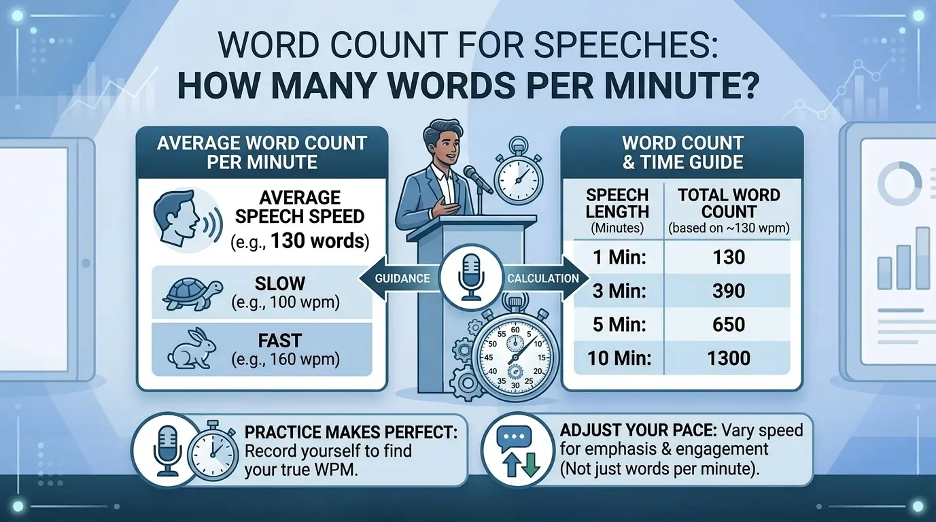
The normal rate of speech is about 120-150 words per minute. Based on that extent:
| Word Count | Estimated Speaking Time |
|---|---|
| 500 words | 3 to 4 minutes |
| 1,000 words | 7 to 8 minutes |
| 1,500 words | 10 to 13 minutes |
| 2,000 words | 13 to 17 minutes |
These estimates are based on your speaking rate, pauses, engagement with the audience and transitions between slides.
Best Method for Accurate PowerPoint Word Count
The most effective approach is dependent on the item you want to count:
| What You Want to Count | Best Method |
|---|---|
| Total presentation text | File > Info > Properties |
| Slide text only | Copy from Outline View to Word |
| Speaker notes | Export handouts to Word |
| Text in PowerPoint Online | Copy text into Word Online |
| Text inside images | Use OCR or manual counting |
The best and most usable result is likely to be the Words version when exported from the presentation.
Tips to Reduce Word Count in PowerPoint

Eliminate repeating phrases, use short bullet points to explain, and help the audience understand your topic better by transferring detailed explanations to the speaker notes. Don't include your full script on slides unless you have a scriptless deck.
The PowerPoint presentation that you use to support your message should complement rather than detract from it.
Interesting Research Facts
Full citations are in Sources below.
Academic slides are often overloaded with text
In 2025, the average number of words on a professional lecture PowerPoint slide was found to be 38.2 words per slide, highlighting the need for a word counter to find text-heavy slides.
Text-heavy slides are extremely common
The same study revealed that text-heavy slides were seen 84.4% of the time, revealing how easy it is for presenters to overrun the recommended amount of text.
The 6×6 rule supports cleaner slide design
If you want a clear and focused slide, 6 bullet points and 6 words per bullet works best, according to research.
Word count affects presentation timing
A 30 minute presentation equates to approximately 4,500 spoken words, slide text should be held to a minimum to not overload the audience.
Dense text reduces comprehension
Research on assertion-evidence slide design indicates that using fewer words and more images will enhance recall and prevent misunderstanding.
Source: Dense text reduces comprehension
Frequently Asked Questions
1. Does PowerPoint have a word count feature?
Yes. In PowerPoint for Windows, click on File > Info > Properties > Show All Properties and search for Words. This will provide a fast word count estimate.
2. Does PowerPoint include the speaker's notes?
Some word counting results will contain notes in PowerPoint, but it's not always obvious. For a safer count, export the presentation to Word and add notes to the presentation.
3. Are speaker notes short notes or complete sentences?
It depends on what you are using it for. Speaker notes can be longer for formal or school assignments or shorter for personal notes.
4. Why does the word count vary when my PowerPoint is compared to Word?
Text can be different in PowerPoint than in Word, particularly if there are notes, shapes, text boxes, charts, or embedded objects on the PowerPoint slides.
5. Does PowerPoint recognize the words in pictures?
No. The PowerPoint will typically not be able to count text that is embedded within an image or screen shot. OCR or manual typing is required.
6. How many slides do I have to count, excluding notes?
Count the words using the Outline View, copy the slide content, paste into Microsoft Word, and check the word count.
7. How to count words in PowerPoint Online?
There are a few restrictions in PowerPoint Online when it comes to word count. Type the text from your slide or the notes in Word Online, Google Docs, or another word counter.
8. How do you count words for a time limit presentation?
Use Microsoft Word to count the number of your speaker notes. The notes typically are the actual text of what you will speak in the presentation.
How we reviewed this article:
Share this article