How to Convert Uppercase to Lowercase in Google Docs?
Learn how you can convert uppercase to lowercase in Google Docs using capitalization tools, formatting options, and practical text editing methods easily.
Quick Summary: Convert Uppercase to Lowercase in Google Docs
- Format → Text → Capitalization
Google Docs converts uppercase to lowercase using the built-in capitalization options under the Format menu—no formulas required. - Cleaner documents
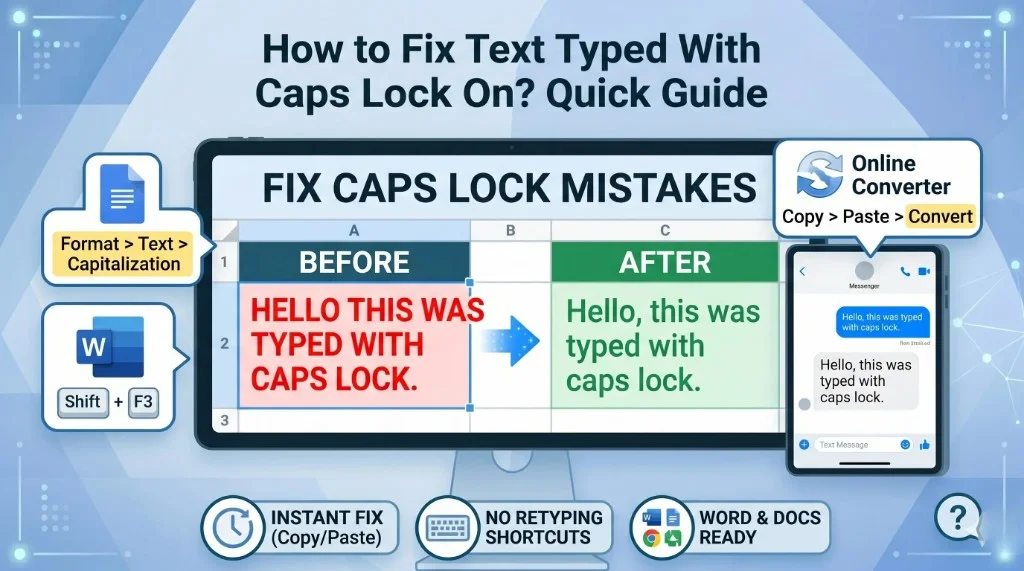
Fixing accidental caps lock, pasted all-caps blocks, and inconsistent imports makes reports easier to read—see our caps lock text fix guide for quick recovery steps. - UPPERCASE and Title Case too
The same menu offers UPPERCASE and Title Case for headings, titles, and structured sections. - Great for pasted content
Web copy, PDFs, and exports often arrive in odd casing; capitalization tools normalize text quickly. - More professional output
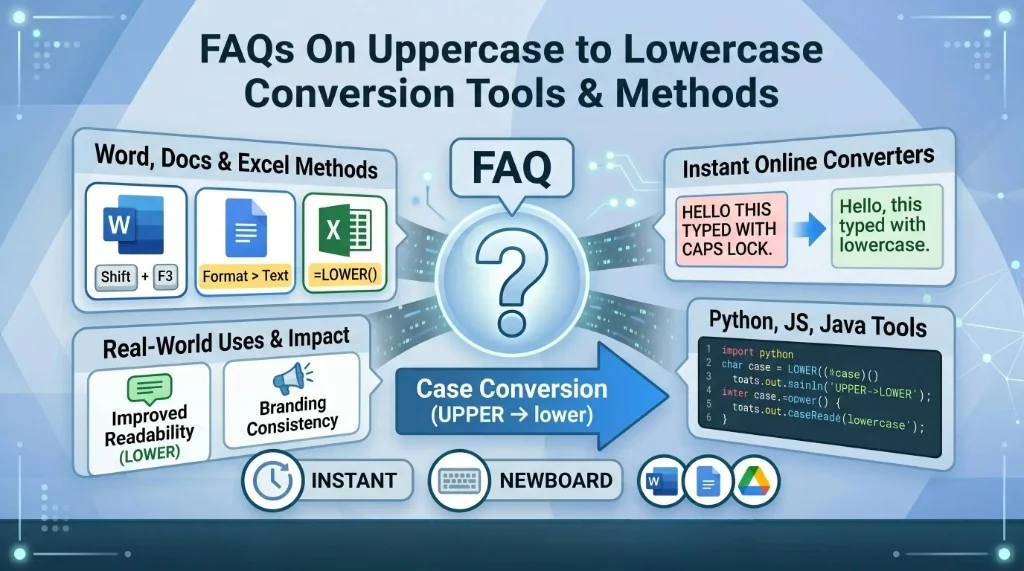
Consistent case helps writers and teams publish polished documents faster—compare keyboard shortcuts in Word and Mac or browse all case conversion tools and methods.
Why Convert Uppercase to Lowercase in Google Docs?
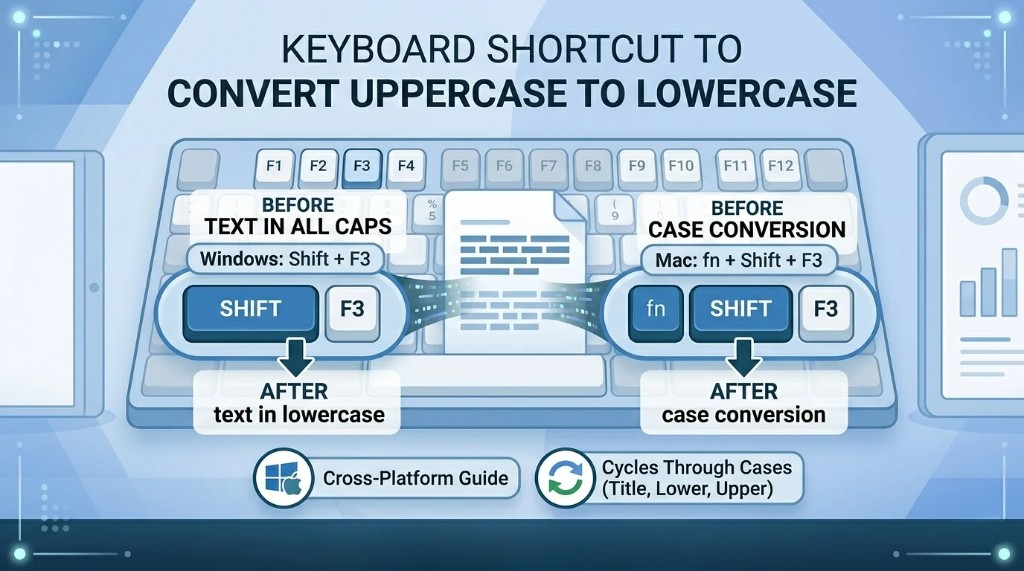
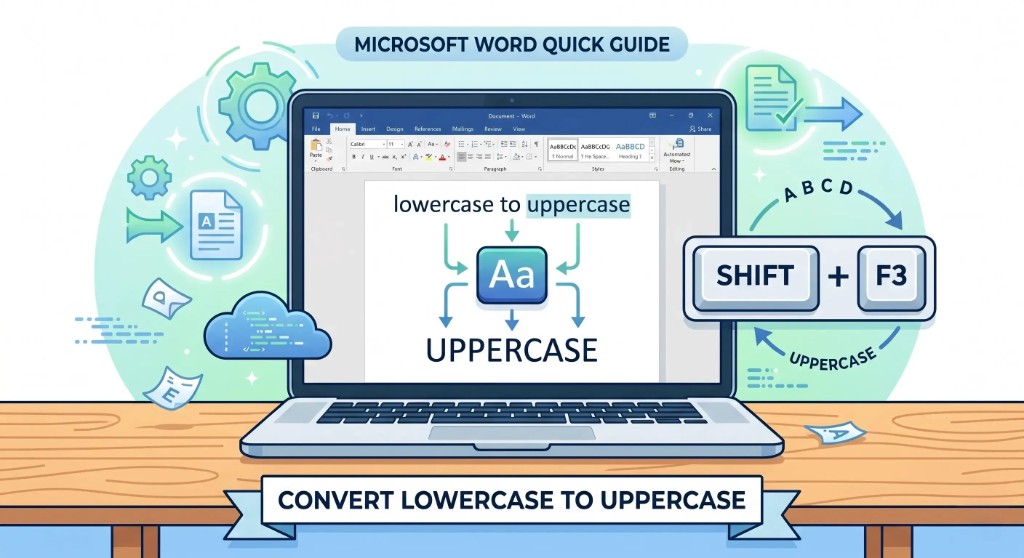
People commonly change text case in Google Docs for readability and polish. Unlike Word's Shift + F3 shortcut, Docs leans on the Format menu—overview in our keyboard shortcut comparison. Common reasons include:
- Fixing accidental caps lock typing
- Improving readability
- Formatting headings and paragraphs
- Editing blog drafts
- Creating professional reports
- Standardizing copied content
- Preparing academic assignments
For example, THIS IS A GOOGLE DOCS FILE is easier to read as this is a google docs file after you apply lowercase.
Does Google Docs Have a Built-In Change Case Feature?
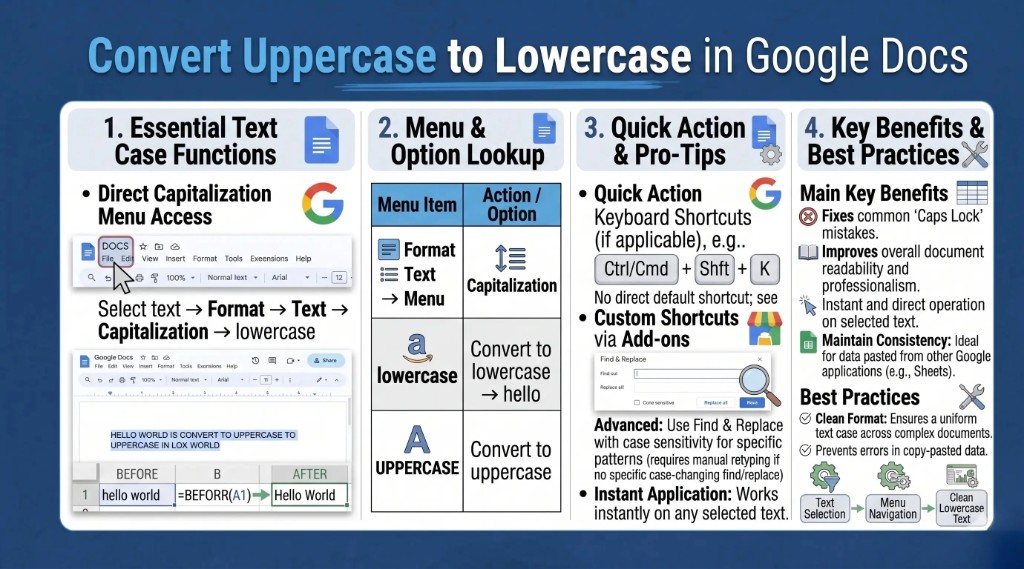
Unlike Microsoft Word, Google Docs does not ship a single "Change Case" toolbar button. You still get reliable case changes through Format → Text → Capitalization, plus optional add-ons when you need bulk or advanced cleanup. For pasted ALL CAPS blocks, pair this with our caps lock fix guide or the free case converter.
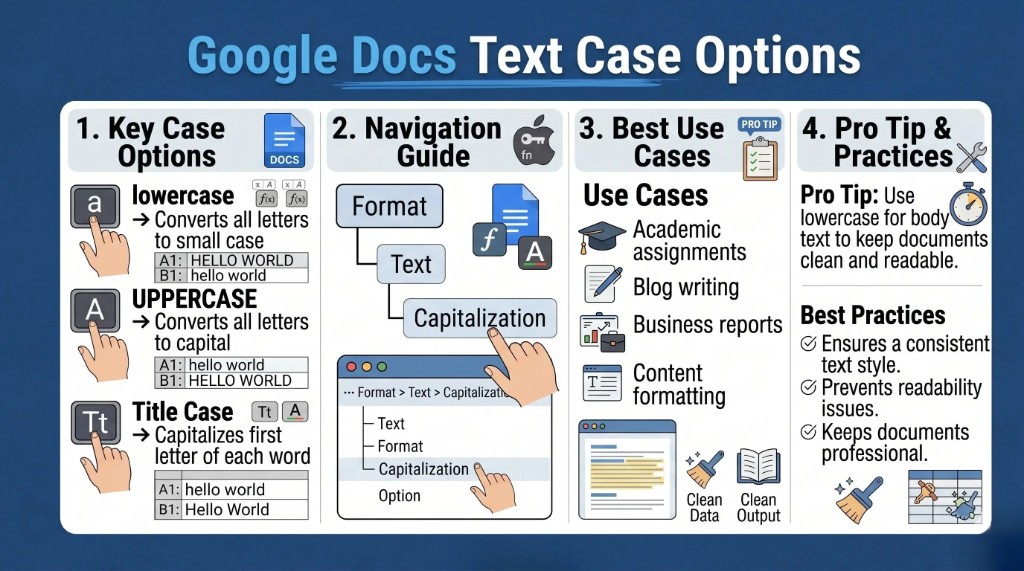
Google Docs exposes text capitalization options inside the Format menu.
Steps to convert text
- Open your Google Docs document.
- Select the text you want to convert.
- Click Format.
- Choose Text.
- Click Capitalization.
- Select lowercase.
Your selection updates immediately.
Example
Before: HELLO WORLD
After: hello world
Convert Lowercase to Uppercase in Google Docs
To reverse the transformation:
- Select your text.
- Go to Format → Text → Capitalization.
- Choose UPPERCASE.
Capitalize the First Letter of Each Word in Google Docs
For title-style headings, use Title Case in the same Capitalization submenu.
Before: hello world from google docs
After: Hello World From Google Docs
Useful for blog titles, chapter headings, and section labels.
Use Keyboard Shortcuts in Google Docs
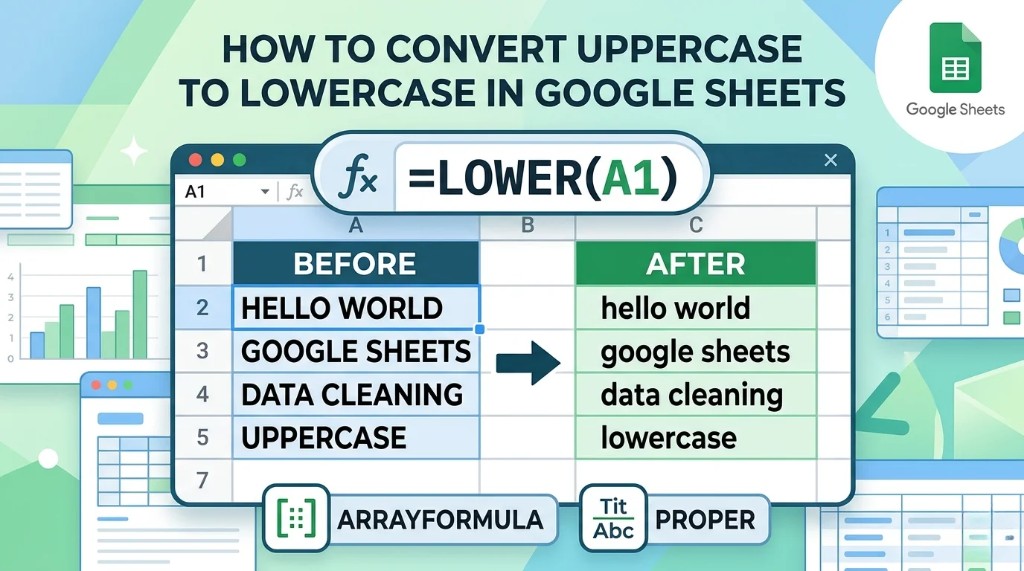
Google Docs does not provide Word's Shift+F3-style case cycling out of the box. Chromebook and power users sometimes install vetted browser extensions or Workspace add-ons for faster batch formatting—review permissions carefully before installing. Tabular data is easier to normalize in Google Sheets with LOWER() or Excel.
Convert Text Using Google Docs Add-Ons
Several Google Workspace add-ons extend Docs with advanced text tools. Commonly mentioned options include:
- Text Cleaner
- Change Case
- Power Tools
They can help with:
- Bulk formatting
- Case conversion
- Removing extra spaces
- Cleaning imported content
Convert Copied Text to Lowercase
Content pasted from websites or PDFs sometimes arrives in all caps—for example SEO SERVICES FOR SMALL BUSINESSES. Select the paragraph and run Format → Text → Capitalization → lowercase to restore comfortable reading flow.
Fix Accidental Caps Lock Text
Before: THIS SENTENCE WAS TYPED WITH CAPS LOCK.
After: this sentence was typed with caps lock.
Much faster than retyping long passages by hand.
Common Mistakes Beginners Make
1. Assuming Word shortcuts always work
Google Docs does not mirror every Microsoft Word shortcut. Use the Format menu or a trusted add-on instead of guessing.
2. Forgetting to select text first
Capitalization commands only affect the current selection.
3. Confusing lowercase with sentence case
lowercase yields hello world. Sentence case (first letter only) is a different rule—Docs may expose it as Sentence case in the same menu when available in your account.
Best Practices for Text Formatting in Google Docs
- Use lowercase for body copy unless style guides demand otherwise
- Reserve Title Case for headings and slide titles
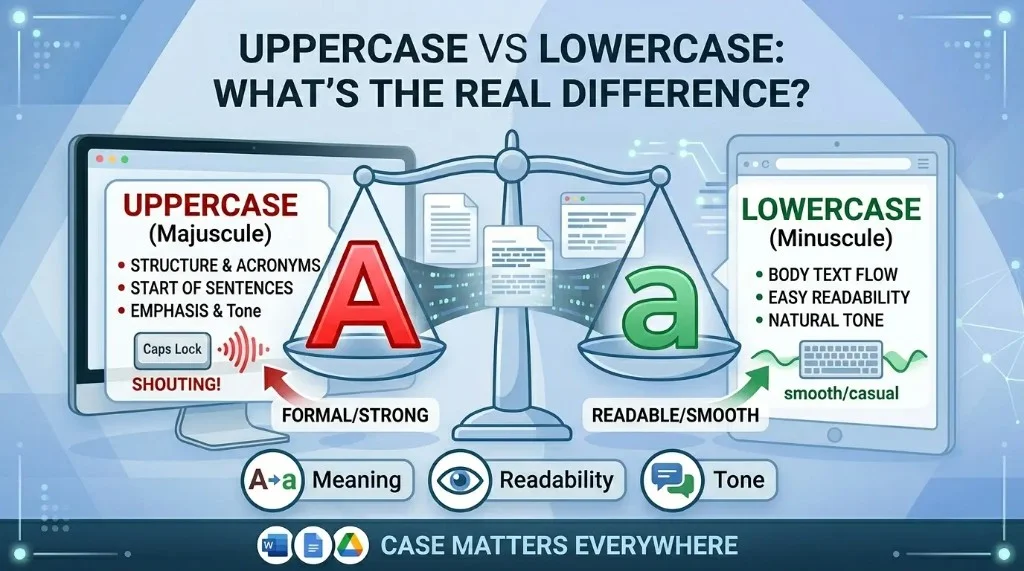
- Avoid shouting in all caps for entire paragraphs
- Keep headings and body styles consistent across the document
- Use capitalization tools instead of manual retyping whenever possible
Real-World Uses of Lowercase Conversion
- Blog writing
- SEO content creation
- Academic assignments
- Business proposals
- Marketing documents
- Team collaboration files
- Editing imported text
Frequently Asked Questions
How do I convert uppercase to lowercase in Google Docs?
Select the text, then choose Format → Text → Capitalization → lowercase.
Can I convert lowercase to uppercase in Google Docs?
Yes. Use Format → Text → Capitalization → UPPERCASE.
Does Google Docs have a Change Case button?
There is no dedicated toolbar button like some Word layouts, but the Capitalization submenu under Format covers the same needs.
Can I capitalize the first letter of every word in Google Docs?
Yes. Use Title Case under Capitalization.
Why is my text stuck in uppercase?
Caps lock may still be on, or the text inherited uppercase styling from the source you copied.
Can I use keyboard shortcuts to change case in Google Docs?
Docs does not ship Word's case-cycling shortcut by default; use the menu or add-ons/extensions if you need hotkeys.
Why should I avoid writing in all caps?
All-uppercase paragraphs are harder to read and can read as shouting in professional contexts.
Final Thoughts
Converting uppercase to lowercase in Google Docs is quick once you know where the capitalization tools live. While there is no single Change Case toolbar icon like some Word setups, Format → Text → Capitalization keeps everyday cleanup simple—whether you are polishing blog posts, class papers, client reports, or SEO outlines.
Share this article