How to Count Words in Canva?
Discover ways to count words in Canva, Google Docs, Microsoft Word, and by using online word counters and PDF export options.
Quick Summary
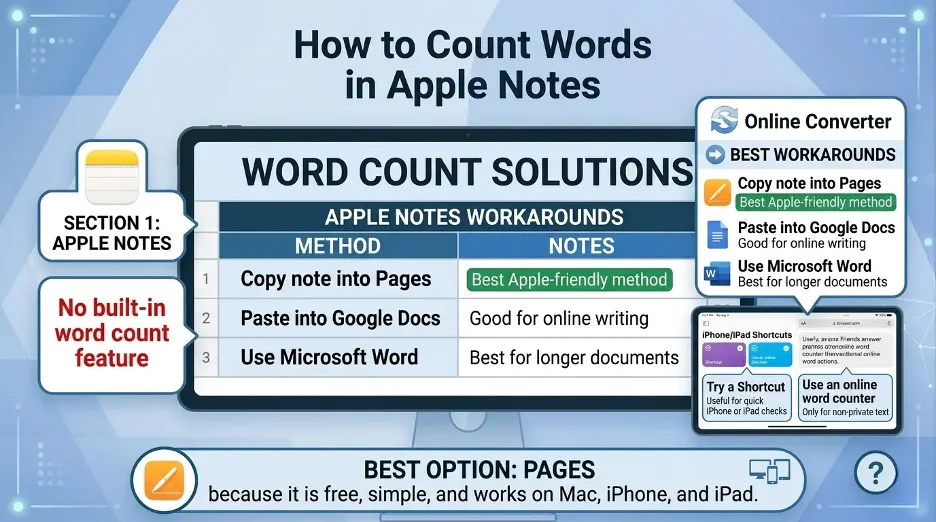
- Not all Canva designs come with a word count feature, so if you're using a standard design (such as a flyer, resume, poster, or presentation), you'll need to find an alternative.
- Canva Docs is the best choice for longer content that requires a lot of text, as it is designed for writing, editing, and organizing longer text content before converting it into a design.
- To get a quick count you can duplicate the content in Canva and then paste it into an online word counter or into your Google Docs or Microsoft Word and see the word count.
- You can export your Canva project to a PDF if you have a lot of pages or slides to collect text from or count in another tool.
- To get the most precise answer, copy all the text boxes and headlines, captions, footers and speaker notes into one document so you can check the word count.
Does Canva Have a Built-In Word Count Tool?
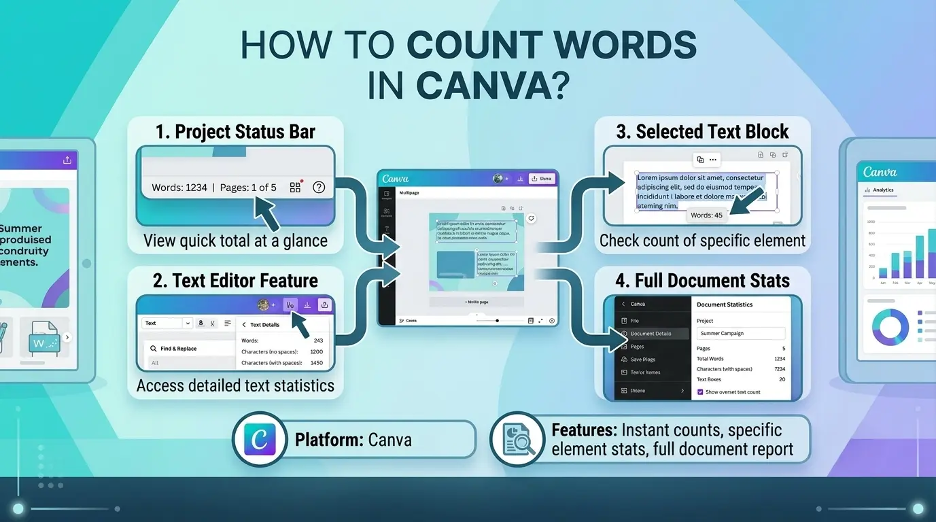
There is no universal word count feature for all design types. However, if you're using a typical Canva template like a poster, Instagram post, resume, or presentation, you won't find a word count option.
Canva Docs, however, is best for writing projects. If your content is stored as a Canva Doc, you could potentially view the word count more easily when working on the Doc workflow. If you're using regular designs, the safest way to do it would be to copy the text and then use an external word counter or document editor.
I discovered that for longer writing, Canva Docs is more effective, but in most cases, Canva designs I have made require a copy and paste solution. When I need to know exactly how many words there are, I always refer to the text outside of Canva.
For Example: When I opened this in Canva, I noticed that sometimes the word count option is not available with regular designs. Hence, I typically copy my Canva text to Google Docs or Microsoft Word for a precise count.
Best Ways to Count Words in Canva
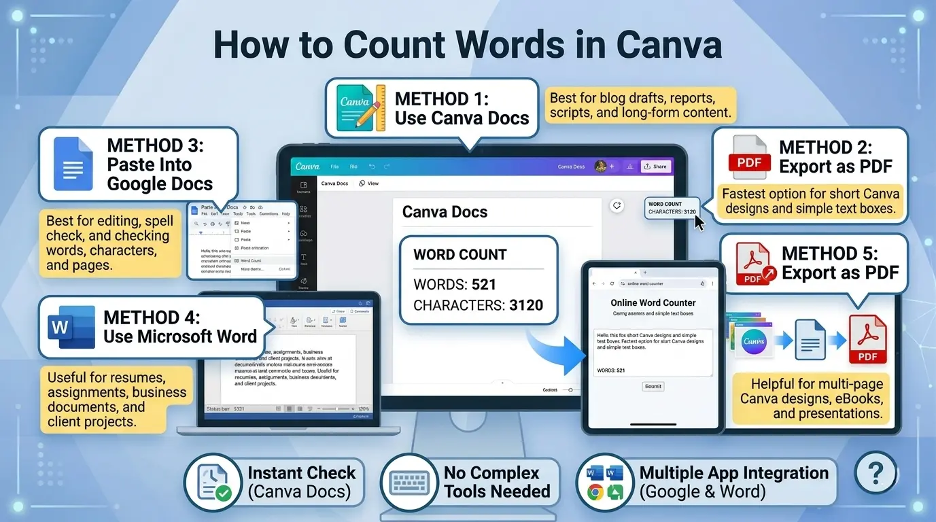
1. Use Canva Docs for Text-Based Projects
For most text-based projects, it's best to use Canva Docs to design and/or manage. When you're working on documents, Canva Docs works better than a design canvas. This is because it was built to draft blog posts, reports, scripts, outlines, assignments, and long-form content.
How to use it:
- Open Canva.
- Look for Canva Documents.
- Make a new document.
- Type or copy your text into the document.
- In the document editor (if available in your version), search for the word count option.
- Before converting your content into a design or a presentation, make sure to use the count to fine-tune it.
This approach is best suited if you are writing the text first and designing after. Ideal for blogs, eBooks, proposals, reports and scripts.
2. Copy and Paste Canva Text Into an Online Word Counter
The quickest remedy is to copy your Canva text and paste it into a complimentary online word counter.
Follow these steps:
- Click on your Canva design.
- Click on the text box that you want to count.
- Highlight the text.
- Copy it.
- Copy and paste it into an online word counter.
- If you have several sections in your design, repeat steps for the other text boxes.
This approach works well for small graphics, captions, simple presentations or one-page graphics. There is one problem with using Canva designs: they often contain several text boxes. If you have a lot of text to enter, you'll have to copy each of the sections carefully in order to not miss out.
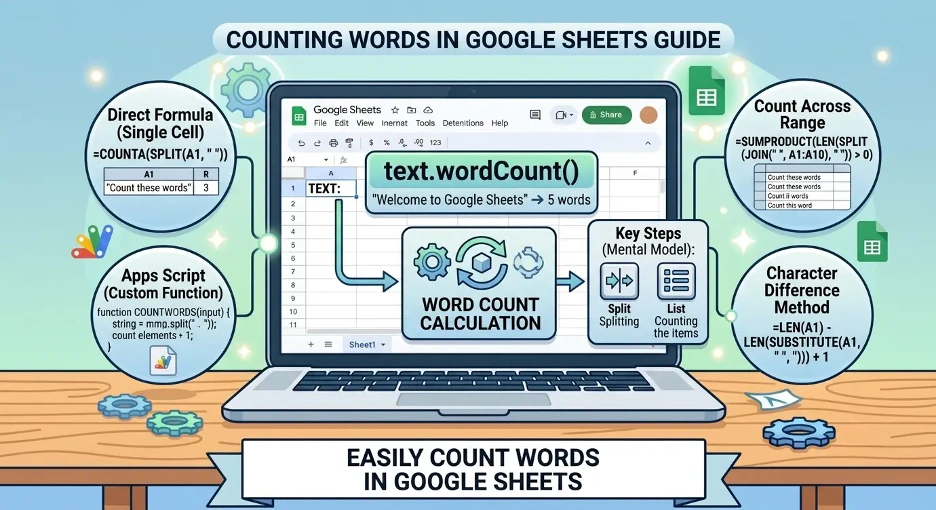
3. Copy Canva Text Into Google Docs
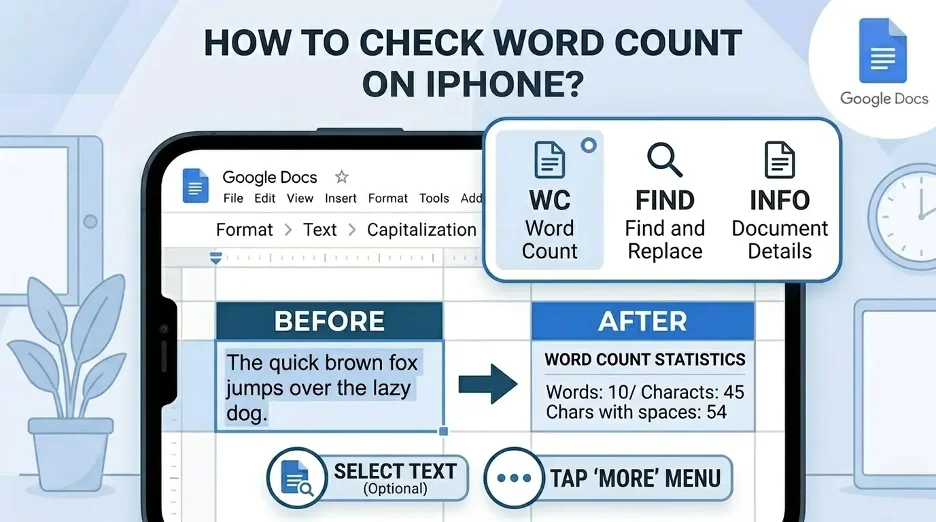
One of the simplest ways to count words is by using Google Docs.
The following is how this is done:
- Copy the text of your Canva design.
- Create a new Google Docs file.
- Paste the text.
- Go to Tools.
- Select Word count.
- Check the word / character / page count.
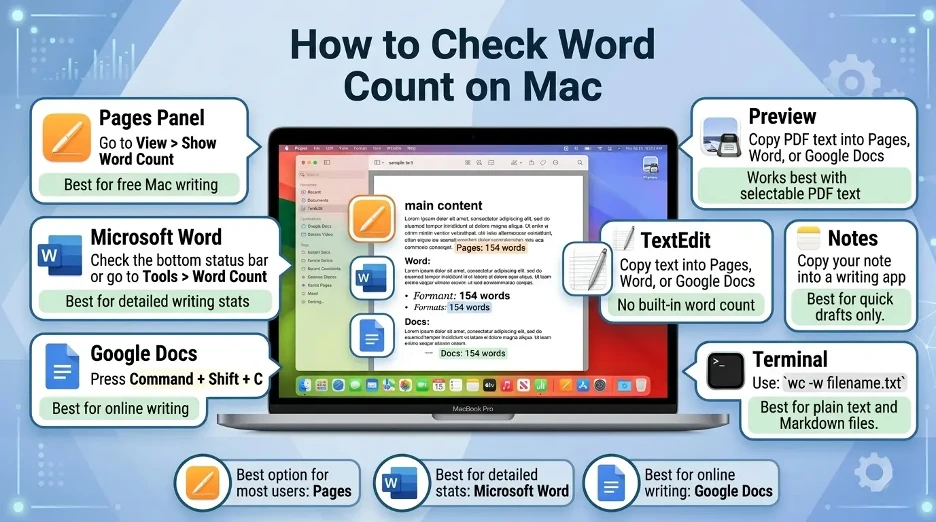
You can also use the keyboard shortcut:
- Windows: Ctrl + Shift + C
- Apple: Command + Shift + C
If you need to make any edits to your text, clean up any formatting, and just review your spelling before you put the final copy back into Canva, it's a great idea to use Google Docs.
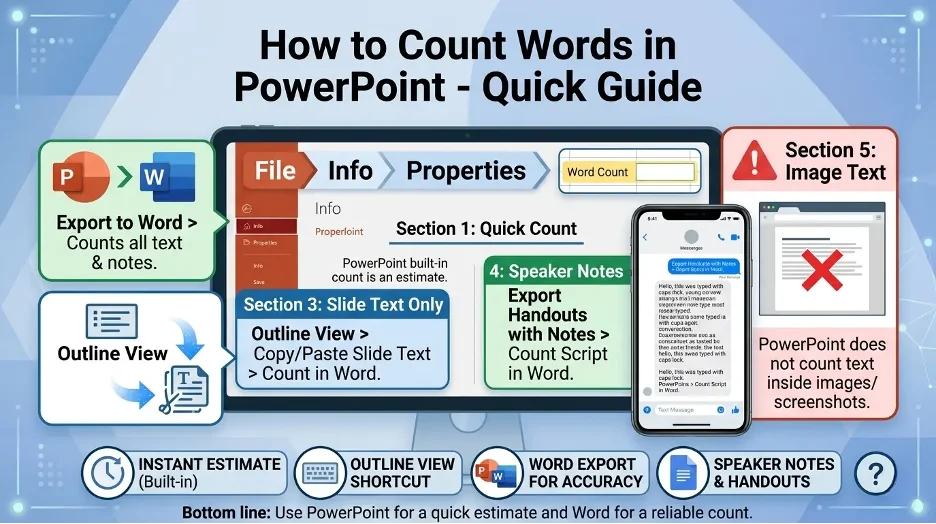
4. Copy Canva Text Into Microsoft Word
Microsoft Word has an inbuilt word counter.
To count Canva words in MS Word:
- Copy the text on Canva.
- Open Microsoft Word.
- Copy and paste the text into the blank document.
- Look at the word count in the bottom of the Word window.
- Click on word count to show characters, paragraphs and lines for more information.
This format is good for assignments, resumes, business documents, and client projects where formatting and word count are important.
5. Export the Canva Design as a PDF and Count the Text
Copying out individual text boxes can be time-consuming if there are a lot of pages in a Canva design. If so, exporting it as a PDF might be of assistance.
The process is as follows:
- Click on your Canva design.
- Click Share.
- Select Download.
- If you have a PDF file, select PDF Standard or PDF Print.
- Download the file.
- Open the PDF.
- Choose and highlight text, then copy.
- Copy/paste into Google Docs, Microsoft Word or a word counter online.
This technique is useful for longer documents, multiple page presentations, worksheets and eBooks.
It may not be 100% accurate, however, when text is heavily stylized, layered, converted to graphics, or incorporated into complex layouts. Be sure to double-check the text you've copied before taking the word count for granted.
Which Method Is Best?
This will vary depending on the type of Canva project you're on.
If your editor provides you with a word count feature, use that one for Canva Docs. If you have a short design to make in Canva, copy and paste the text into an online word counter. If you are working on a longer project, use Google Docs or Microsoft Word. If you're using a multi-page design, save your Canva design as a PDF and then unmerge the text.
The following is a very simple rule:
- Consider using Canva Docs for writing long-form content.
- Check the online word counter when needed.
- Edit and review accurately with Google Docs or Microsoft Word.
- If the design is longer than a couple of pages, then use PDF export.
How to Count Words in a Canva Presentation?
Counting words for a presentation in Canva may require additional effort as text is typically spread out into various slides and text boxes.
Use this workflow:
- Open Canva Presentation.
- Go slide by slide.
- On each slide, copy all the text that is visible.
- Copy and paste the text into Google Docs or Word.
- Verify word count.
- Make additional copies of speaker notes if applicable.
If your presentation is long, download it as a pdf and copy the content into a word counter. This is quicker than individually selecting each text box.
How to Count Words in a Canva Resume?
Canva templates for resumes feature distinct text boxes for the summary, work experience, skills, education and contact information. Copy each section into one document, to ensure correct word count.
Word count isn't always the first priority in resumes. Clarity matters more. Your resume should highlight relevant accomplishments, be easily scannable, and short. Once you have counted the words, look for any repetition, extended bullet points, and filler in the resume.
How to Count Words in a Canva Poster or Flyer?
Typically posters and flyers do not require too many words, they require only a few. When you are counting words for a Canva poster, copy and paste the title, sub-headline, text, call to action, and contact information in a word counter.
The ideal poster or flyer is readable, on the first sight. If it seems like too many words, shorten the message and only include the most important information.
How to Count Words in a Canva eBook?
The PDF export method can be the most convenient for a Canva eBook.
Use this process:
- Complete eBook layout in Canva.
- Export it as a PDF.
- Create a copy of the PDF in Google Docs or Word.
- Review the Word Count.
- Check for any missing portions of the text or any mistakes in formatting.
To ensure greater accuracy, draft the eBook in Google Docs, Microsoft Word or Canva Docs first. When the content is finished, upload it to Canva to design.
Tips for Getting an Accurate Canva Word Count
To prevent errors, here are some tips:
- Review all text boxes, pages and slides.
- Separate notes from text on slides.
- Check and recalculate the final number in copied text.
- Look for missing words in charts, tables, headers and footers.
- Avoid counting the placeholder text, if it won't be in the final product.
- If word count is crucial, include the original draft using a writing tool.
- If you are constrained on word count, use Canva primarily for layout and design.
My top suggestion is to make one master document before counting. I make copies of all the headlines, paragraphs, captions, footers and speaker notes into a single place, otherwise I may forget to check for the small text boxes.
Why Word Count Matters in Canva Projects?
Word count is a good gauge to remain clear, readable and on-topic. Social media graphics should have a concise and impactful text. A resume should be brief and scannable. Slides in a presentation should not be too full. An eBook or report should be sufficiently detailed but not repetitive.
Word Count will also benefit you in checking:
- Meeting assignment requirements
- Staying within client guidelines
- Improving readability
- Reducing clutter in designs
- Estimating reading time or speaking time
- Avoiding fancy copy
Design and text collaborate in Canva. There is a fine balance between over- and underwording. A word count goes a long way in helping you decide on the balance. I have tried these approaches with designs such as resumes, flyers, presentations, etc., and multi-page documents produced in Canva. I've found that the best way to do this is create a copy of the final text in Google Docs, Microsoft Word or word counter.
Interesting Research Facts
Full citations are in Sources below.
Use the 6×6 rule for slides
6 lines and 6 words on each line to prevent cognitive overload and better retention.
Source: Use the 6×6 rule for slides
Limit text on dense graphics
Users tend to skim-read rather than read; Nielsen Norman Group research shows that only about 20% of the text on an average page is read.
Source: Limit text on dense graphics
Keep social media graphics concise
Aim for a short headline of 1–5 words and a short supporting text for easy readability and engagement.
Use white space to build trust
Do not overcrowd designs; white space creates a better visual hierarchy, focus and visual brand impression.
Source: Use white space to build trust
Follow readable line lengths
Text lines should be about 45–75 characters long; approximately 66 characters is the optimum length for readability.
Source: Follow readable line lengths
Frequently Asked Questions
1. Does Canva include word count?
Not all design types include a word count on Canva. If you have a regular design, you might have to take the texts into Google Docs, Microsoft Word, or online word counter.
2. Am I able to count words in Canva Docs?
Canva Docs is ideal for writing based projects, but there may be some differences in features. If you don't find a word count feature, copy and paste the text into a different writing application.
3. How do you count words in the presentation created in Canva?
Copy the text from each slide and paste it into Google Docs or Microsoft Word. If the presentation is lengthy, save the presentation as a PDF-file and copy the text.
4. When I copy text, why isn't my word count accurate in Canva?
In Canva designs, there may be multiple text boxes, making it easy to miss captions, headers, footers or small text labels. Please look in all pages and text boxes.
5. Is it possible to count words in a Canva PDF?
Yes. Save your Canva design as a PDF, copy the text from the PDF and paste into a word counter, Google Docs, or Microsoft Word.
6. How to count words in Canva?
The most convenient method is to copy everything that you've written in Canva and paste it into Google Docs or an online word counter. Ideal for short designs.
7. Which should I start first, Canva or Google Docs?
When it comes to word count, I like to start writing in Google Docs or Microsoft Word and then copy and paste the text into Canva to design.
How we reviewed this article:
Share this article